Here’s a scenario I run into constantly when setting up WooCommerce booking sites: the client already has 30 products with prices set. They’ve been managing those prices in WooCommerce for months. Then we install a booking plugin and it goes – “great, now enter your prices again, in here.” So you do. And six weeks later someone updates WooCommerce and forgets the booking plugin. And a customer sees the wrong rate.
It’s a small thing that compounds into a real problem at scale. This is exactly the workflow that Baza Booking Calendar was built to avoid with its custom metadata integration.
Why Most WooCommerce Booking Plugins Create a Pricing Mess
The official WooCommerce Bookings plugin ($249/year), YITH Bookings, and most alternatives like PluginHive treat pricing as something they own. You configure it inside the booking product settings, and it has zero connection to the actual WooCommerce product price or any other field on your site. That’s fine if you’re starting from scratch – but most sites aren’t.
Real-world setups usually look more like this:
- Studio or venue rental prices already live in WooCommerce products as
_regular_price - Hourly service rates stored in ACF (Advanced Custom Fields) number fields
- Minimum booking durations set per service in a custom post type meta field
- Pricing tables maintained by an editor who has no idea a booking plugin even exists
With a traditional WooCommerce booking plugin, none of that existing data matters. You’re duplicating it manually and hoping both sources stay in sync. They won’t.
Reading Prices Directly from WooCommerce Product Meta
Baza Booking Calendar takes the opposite approach. Rather than storing its own isolated price, it can pull the price from any WordPress post meta field attached to the service – including the standard WooCommerce _regular_price field that every WooCommerce product already has.
How to Enable Custom Meta Pricing
Inside the service settings, enable Display the price from the custom meta data and type in the meta key you want to read from. For standard WooCommerce products that’s _regular_price. For a sale price it’s _sale_price. For an ACF field called “hourly_rate” it’s just hourly_rate – whatever key name you used when creating the field.
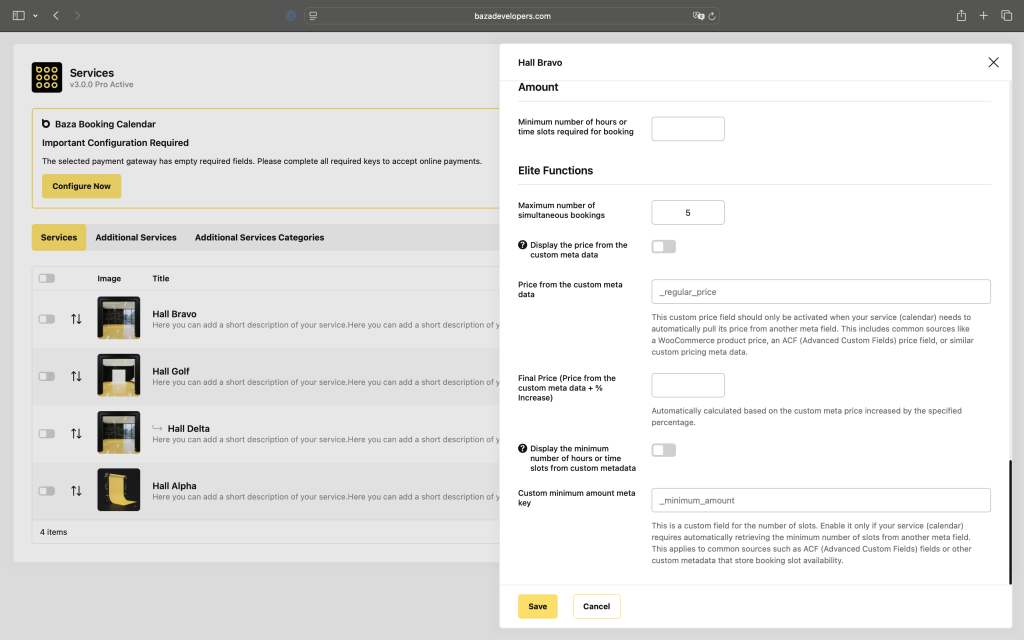
Once that’s saved, the booking calendar shows the price from that meta field automatically. You update the WooCommerce product price – the booking calendar reflects it the next page load. No sync job, no webhook, no manual step.
There’s also a Final Price field that applies a percentage markup on top of whatever the meta field returns. Useful if your WooCommerce product represents a base cost and the bookable service has an additional margin on top.
Which Price Sources Are Supported
- WooCommerce regular price – meta key
_regular_price - WooCommerce sale price – meta key
_sale_price - ACF number or text field – the field name you defined in ACF (not the
field_key, just the name) - Any custom post meta – from your theme, another plugin, a custom post type, anything stored via
update_post_meta()
Minimum Booking Hours from Meta – Same Idea
The same logic applies to minimum booking duration. Instead of hardcoding a number of hours per service inside the plugin, you point it to a metadata field that already stores this value for each service individually.
Enable Display the minimum number of hours or time slots from custom metadata and enter the meta key – something like _minimum_amount or whatever you’re using. The calendar enforces that minimum automatically, and it’s different per service based on whatever that field contains for each one.
This becomes genuinely useful when:
- You have services with different minimum durations and want editors to control them through ACF without touching plugin settings
- Minimum booking times come from an external system synced into WordPress meta fields
- You manage 20+ services and the idea of configuring minimums one-by-one in a booking plugin sounds like an afternoon you’d rather not have
Real Setups Where This Actually Matters
Photography Studios and Shooting Spaces
A photo studio rents out three rooms at different hourly rates, all set up as WooCommerce products. Baza Booking Calendar reads _regular_price from each product. The studio manager changes a price in WooCommerce – it shows up in the booking form immediately. No second step.
Equipment Rental with ACF Rate Sheets
An equipment rental company stores hourly rates and minimum rental durations in ACF fields per item. The booking calendar reads both fields directly. No separate per-item booking configuration needed.
Co-working Spaces with Many Rooms
A co-working space manages 15 rooms in WooCommerce. With one meta key configured in Baza Booking Calendar, all 15 services pull their prices automatically. Configuring 15 services in a traditional booking plugin’s pricing interface would take an hour; this takes a minute.
How This Differs from Other WooCommerce Booking Plugins
The WooCommerce Bookings plugin by Woo, YITH Bookings, and Bookings for WooCommerce by PluginHive all manage pricing internally. There’s no built-in way to pull prices from existing WooCommerce product meta or ACF fields. You’re entering prices in the booking product settings separately from wherever they already live on your site.
Baza Booking Calendar was built for sites that already have a data structure – WooCommerce products, ACF fields, custom post types – and need a booking layer that works with that structure instead of running parallel to it.
Setting It Up: 3 Steps
- Open any service in Baza Booking Calendar and go to Settings
- Enable Display the price from the custom meta data and enter the meta key (e.g.
_regular_pricefor WooCommerce, or your ACF field name) - Optionally enable Display the minimum number of hours from custom metadata and enter that field’s meta key
From that point on, both values are read from your existing data. Update the source – the booking calendar follows.
Frequently Asked Questions
The meta key _regular_price is stored at the product level. For variable products, point to a specific variation meta key or use an ACF field that holds a consolidated booking price for that service.
Yes. The Final Price field accepts a percentage increase applied on top of the meta price automatically.
The calendar falls back to the price configured directly in the service settings. Nothing breaks – the fallback is always safe.
Yes. ACF stores values as standard WordPress post meta. Use the ACF field name – not the field_ key – as the meta key in Baza Booking Calendar settings.
In this category
-
 Amelio: A Smarter, Smoother Booking Experience for WordPress
-
 Beauty Salon Booking Software for WordPress
-
 Best WordPress Booking Plugins in 2026: 10 Solutions Compared
- Booking Calendar for WordPress: How to Streamline Your Booking Process
- Online Booking Plugin for Photo Studios: Why Your Website Needs It
-
 Photo Studio Booking Software for WordPress
-
 Special Offers: Turning a Single Click Into an Upsell
-
 WordPress Booking Plugin with Google Calendar - Full Setup Guide (2026)
-
 WordPress Booking Plugin with SMS Notifications: Cut No-Shows with the Right Gateway
-
 Zapier Integration for WordPress Booking Calendar - Automate Every Booking