Managing appointments manually quickly becomes overwhelming. Service providers, rental companies, consultants, and studios already rely on Google Calendar to organize their day – but without automation, keeping a WordPress website synchronized with that calendar requires constant manual work.
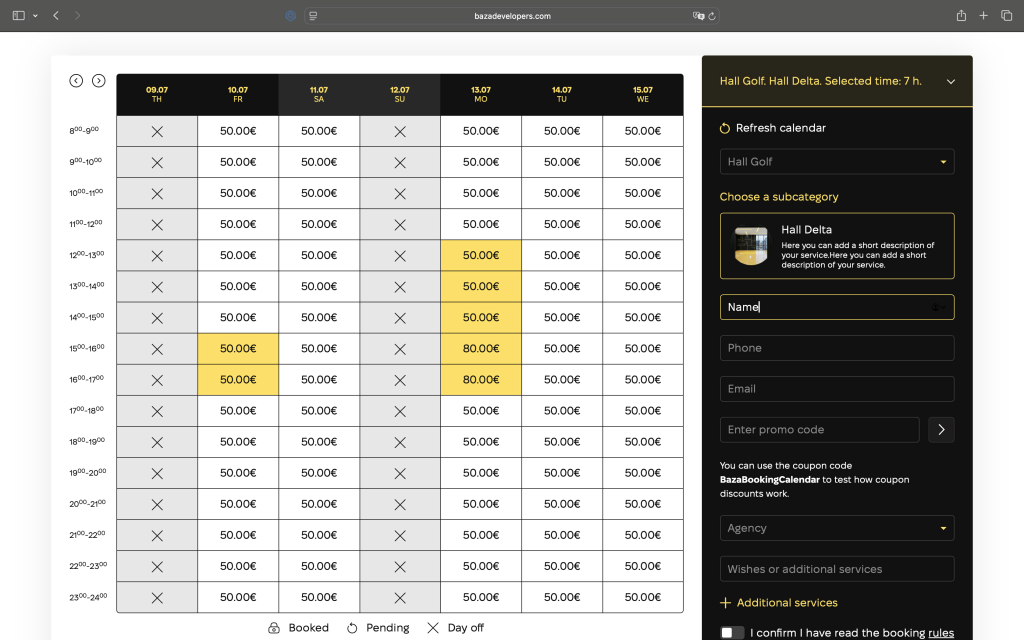
A WordPress booking plugin with Google Calendar integration solves this by automatically synchronizing every appointment between your website and calendar in real time. No more double bookings. No more copying reservations by hand. No more missed appointments because schedules live in separate tools.
In this complete guide you will learn:
- how WordPress booking plugins with Google Calendar actually work
- which features matter most when choosing a plugin
- how to connect your booking system to Google Calendar step by step
- which businesses benefit most from this integration
- why Baza Booking Calendar is built for this workflow
Why Google Calendar Integration Matters for WordPress Booking
Most service businesses already live inside Google Calendar. The problem starts when a customer books an appointment through your website and that information stays only in WordPress – completely invisible to your actual working calendar.
This disconnect creates three critical problems:
Double bookings
Without synchronization, a time slot booked through your website stays open in Google Calendar. Someone else can book the same slot – either through another channel or because you manually scheduled something directly in your calendar. The result is two clients arriving at the same time.
Manual schedule management
Without automation, administrators must copy each reservation from WordPress into Google Calendar by hand. For businesses handling ten or more bookings per day, this becomes a significant time drain and an ongoing source of human error.
Missed appointments
When your schedule is split across a WordPress admin panel and a calendar app, important appointments fall through the gaps. Notifications do not sync. Reminders fire in only one system. Appointments get forgotten.
A properly integrated booking plugin eliminates all three problems by keeping both systems in continuous sync.
What Is a WordPress Booking Plugin
A WordPress booking plugin allows visitors to reserve services, appointments, or resources directly from your website – without calling or emailing your team.
Instead of back-and-forth communication to find a free slot, customers open a booking calendar on your website, select an available time, fill in their details, and confirm. The system handles everything automatically from that point forward.
A complete booking plugin typically includes:
- a front-end availability calendar showing open and booked slots in real time
- configurable time slot durations per service
- automated confirmation emails for customers and administrators
- payment collection during the booking process
- appointment reminders via email, SMS, or messenger
- Google Calendar synchronization to keep all schedules aligned
How WordPress Booking Sync with Google Calendar Works
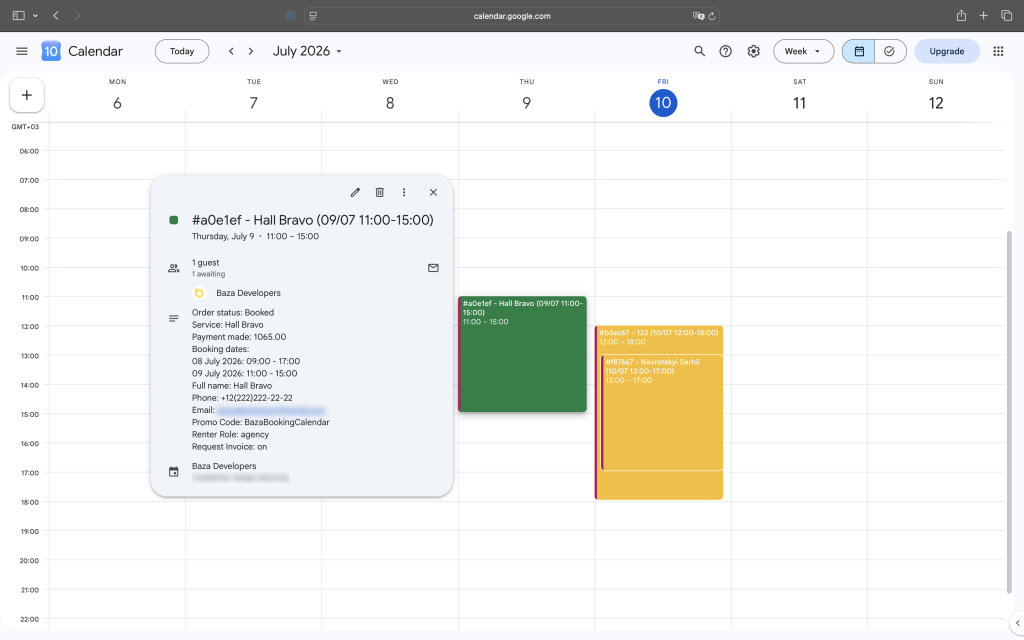
Google Calendar integration in a booking plugin works through the Google Calendar API. Once your WordPress site is connected to your Google account, the plugin communicates with Google’s servers automatically on every booking event.
The synchronization process works like this:
- A customer opens the booking calendar on your website and selects an available time slot.
- The booking plugin creates a reservation in WordPress and marks the slot as unavailable.
- The plugin sends the reservation data to Google Calendar via API and creates a calendar event automatically.
- The time slot is now blocked on both the website calendar and in Google Calendar simultaneously.
- The customer and administrator receive confirmation notifications.
With two-way synchronization, the reverse also applies: if you add an event directly in Google Calendar – a personal appointment, a blocked day, a meeting – that time slot automatically becomes unavailable on your website. Customers can never book a slot you have already claimed in your calendar.
Key Features to Look for in a WordPress Booking Plugin with Google Calendar
Not all booking plugins handle Google Calendar integration equally. These are the features that separate a reliable system from a basic one.
Two-way synchronization (not just one-way export)
One-way sync pushes bookings from WordPress into Google Calendar – but it does not pull events back. This means a dentist appointment you add to your personal calendar does not block the corresponding slot on your website. Two-way sync solves this: changes in either direction are reflected immediately in both systems.
Real-time availability updates
The booking calendar on your website should always reflect the actual current state of your schedule. Customers must only see time slots that are genuinely available at the moment they are booking – not slots that have been taken since the page last refreshed.
Flexible time slot configuration
Different services require different booking durations. A photography session is not the same length as a consultation call. A professional booking plugin should support configurable slot lengths – typically 15, 30, 45, or 60 minutes – with buffer times between appointments to allow preparation.
Automated multi-channel notifications
Confirmation and reminder messages reduce no-show rates significantly. Look for a plugin that sends automated notifications via email, SMS, and messenger platforms like Telegram – not just email alone. Reminders sent 24 hours and 1 hour before an appointment perform the best.
Payment collection at booking
Requiring payment during the booking process is one of the most effective ways to reduce cancellations and no-shows. When customers have already paid, they are far more likely to show up. Look for a plugin with direct payment gateway integration – not redirects to third-party checkout pages.
REST API and developer extensibility
Businesses with existing CRM systems, mobile applications, or custom workflows need a booking plugin that exposes a REST API. This allows the booking system to connect with external platforms without building workarounds.
Best WordPress Booking Plugins with Google Calendar – Comparison
Several booking plugins support Google Calendar integration. The table below compares the most commonly used solutions based on their actual sync capabilities and developer tools.
| Plugin | Google Calendar Sync | Sync Direction | Online Payments | Notifications | API |
|---|---|---|---|---|---|
| Baza Booking Calendar | Yes | Two-way | Yes | Email, SMS, Telegram, Viber, WhatsApp | REST API, Zapier |
| Amelia | Yes | One-way | Yes | Email, SMS | Limited |
| Simply Schedule Appointments | Yes (Premium) | Two-way | Yes (Premium) | Zapier only | |
| Bookly | Yes (Addon) | One-way | Yes | Email, SMS | Addons required |
| LatePoint | Yes | One-way | Yes | Email, SMS | Webhooks |
Note: Amelia’s Google Calendar integration is one-way – bookings push from Amelia to Google Calendar, but Google Calendar events do not block availability in Amelia unless the “Check Google Calendar for conflicts” setting is enabled manually per employee.
Baza Booking Calendar – WordPress Booking Plugin with Google Calendar
Baza Booking Calendar is a WordPress booking plugin built specifically for service businesses that need reliable scheduling automation. It integrates directly with Google Calendar through the Google API and provides genuine two-way synchronization – meaning your website calendar and Google Calendar always reflect the same availability.
The plugin is designed for businesses where scheduling accuracy is critical and manual calendar management is not an option.
Two-way Google Calendar synchronization
Every booking created on the website appears in Google Calendar automatically. Every event added directly to Google Calendar blocks the corresponding slot on the website. Both systems stay synchronized without any manual action required.
Real-time booking availability
The booking calendar updates in real time as appointments are made. Customers always see an accurate view of available slots – preventing the situation where two people attempt to book the same time because the page data was stale.
Configurable booking slots and services
Administrators configure booking intervals per service – 15, 30, 45, or 60 minutes – with optional buffer time between appointments. Each service can have its own duration, pricing, and availability window.
Automated notifications via Email, SMS, and Telegram
Customers and administrators receive booking confirmations and appointment reminders automatically. Notifications go out via email, SMS, and Telegram – covering the channels your clients actually use, not just email.
Payment processing at booking
The plugin supports payment collection during the booking flow through banking API integrations. Customers pay when they book – securing the appointment and reducing no-show rates.
REST API for custom integrations
A full REST API allows developers to connect Baza Booking Calendar with CRM systems, mobile applications, or external platforms – without rebuilding the booking logic from scratch.
How to Connect a WordPress Booking Plugin to Google Calendar
Setting up Google Calendar sync in a WordPress booking plugin follows the same general process across most plugins. Here is what the setup looks like with Baza Booking Calendar:
- Install and activate Baza Booking Calendar on your WordPress site.
- Open the plugin settings and navigate to the Google Calendar integration section.
- Create a Google Cloud project in the Google Cloud Console and enable the Google Calendar API.
- Generate OAuth credentials (Client ID and Client Secret) and paste them into the plugin settings.
- Authorize the connection by signing into your Google account and granting the plugin permission to manage calendar events.
- Select the target calendar from your Google account where bookings should appear.
- Test the integration by making a test booking and confirming the event appears in Google Calendar.
Once connected, the synchronization runs automatically. No manual steps are required for individual bookings.
Which Businesses Benefit Most from WordPress Booking with Google Calendar
Any business that operates on a scheduled basis gains from automating the connection between their website and calendar. These industries see the strongest return from this setup.
Photography studios
Studios can accept session bookings directly from their website. Each confirmed booking appears in Google Calendar with client details, leaving no room for scheduling conflicts between online bookings and manually arranged sessions.
Rental businesses
Equipment rental, studio rental, and property rental companies need precise availability management across multiple channels. Google Calendar sync ensures that manually blocked dates – for maintenance, events, or personal use – are immediately reflected on the booking page.
Consultants and coaches
Independent professionals often manage client calls, internal meetings, and personal appointments in the same calendar. Two-way sync guarantees that a client can never book a slot already taken by a non-website event.
Fitness and wellness studios
Gyms, yoga studios, and wellness centers manage class schedules, personal training sessions, and treatment bookings. Google Calendar integration keeps instructors and administrators informed in real time without logging into a separate system.
Tutors and education services
Tutors, language schools, and training providers can automate lesson scheduling entirely. Students book through the website, and the tutor’s Google Calendar is updated instantly – including the student’s details and session notes.
Benefits of Using a WordPress Booking Plugin with Google Calendar
Connecting your WordPress booking system to Google Calendar delivers measurable operational benefits beyond simple convenience.
Eliminates double bookings completely
When the booking plugin and Google Calendar share the same availability data, it is impossible for two customers to book the same slot – regardless of which channel the second booking attempt comes through.
Saves significant administrative time
Manual entry of bookings into a calendar takes anywhere from two to five minutes per reservation. For a business handling twenty bookings per day, automation saves over an hour of administrative work every single day.
Reduces no-show rates
Automated reminders sent before an appointment – combined with the fact that the booking is now visible in the customer’s calendar ecosystem – significantly reduce the rate of forgotten appointments.
Enables schedule management from any device
Because Google Calendar syncs across all devices, administrators can view and manage their booking schedule from a phone, tablet, or computer – without opening the WordPress dashboard.
Improves customer experience
Customers book instantly, receive immediate confirmation, and get automatic reminders. The entire process happens without any manual involvement from the business – which feels professional and reliable.
How to Add a Booking Calendar to WordPress
Adding a booking system to a WordPress website is straightforward. The general setup process for most modern booking plugins follows these steps:
- Install the booking plugin from the WordPress plugin directory or upload it manually.
- Configure your services – define names, durations, pricing, and availability windows.
- Connect Google Calendar integration using your Google account credentials.
- Set up automated notifications – confirmation emails, SMS reminders, and Telegram messages.
- Configure payment settings if you want to collect payment during booking.
- Add the booking calendar to any page using a shortcode or Gutenberg block.
- Test the complete booking flow before publishing.
After completing setup, your website visitors can book appointments directly – and every confirmed booking appears in Google Calendar automatically.
Yes. WordPress booking plugins that support Google Calendar integration connect to the Google Calendar API and automatically create calendar events for every new booking. With two-way synchronization, events added directly in Google Calendar also block availability on the WordPress booking calendar – preventing double bookings from either direction.
The process involves creating a Google Cloud project, enabling the Google Calendar API, generating OAuth credentials (Client ID and Client Secret), and entering them into your booking plugin settings. Once authorized, the plugin handles all synchronization automatically – no manual steps are needed for individual bookings.
Yes – but only with true two-way synchronization. When a booking plugin has two-way sync enabled, a time slot booked on the website is blocked in Google Calendar, and an event added directly to Google Calendar blocks the corresponding slot on the website. One-way sync only covers bookings made through the website and does not pull personal calendar events back.
If your business accepts appointments, sessions, or reservations, a booking plugin automates the entire scheduling process – from displaying availability to sending confirmations and collecting payment. Without a plugin, every booking requires manual communication, which does not scale beyond a handful of clients per day.
Two-way sync means changes flow in both directions. A booking created on your website automatically creates a Google Calendar event. An event you add directly in Google Calendar blocks that time slot on your website. This is different from one-way sync, which only sends bookings from WordPress to Google Calendar – leaving personal calendar events invisible to your booking system.
Baza Booking Calendar provides genuine two-way Google Calendar synchronization along with multi-channel notifications via Email, SMS, and Telegram, built-in payment processing, and a full REST API – making it one of the most complete solutions for service-based businesses that rely on accurate, automated scheduling.
A WordPress booking plugin with Google Calendar integration is not a convenience feature – it is an operational requirement for any business that runs on appointments. Without synchronization, scheduling conflicts, missed bookings, and manual calendar management consume time that should go toward serving customers.
The difference between a basic integration and a properly implemented one comes down to sync direction. One-way sync keeps your Google Calendar informed. Two-way sync keeps your entire schedule accurate – regardless of where an event originates.
Baza Booking Calendar combines true two-way Google Calendar synchronization with automated notifications, payment collection, and a developer REST API – giving service businesses the tools to automate scheduling completely and run their operations from a single source of truth.
In this category
-
 Amelio: A Smarter, Smoother Booking Experience for WordPress
-
 Beauty Salon Booking Software for WordPress
-
 Best WordPress Booking Plugins in 2026: 10 Solutions Compared
- Booking Calendar for WordPress: How to Streamline Your Booking Process
- Online Booking Plugin for Photo Studios: Why Your Website Needs It
-
 Photo Studio Booking Software for WordPress
-
 Special Offers: Turning a Single Click Into an Upsell
-
 WooCommerce Bookings with Custom Price and Minimum Hours from Product Metadata
-
 WordPress Booking Plugin with SMS Notifications: Cut No-Shows with the Right Gateway
-
 Zapier Integration for WordPress Booking Calendar - Automate Every Booking