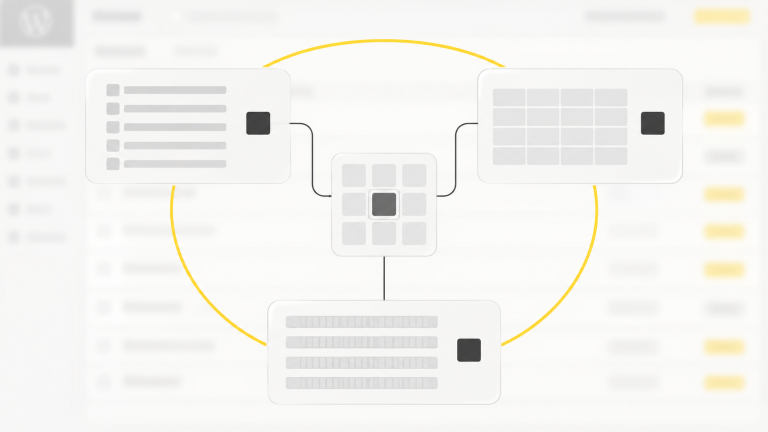
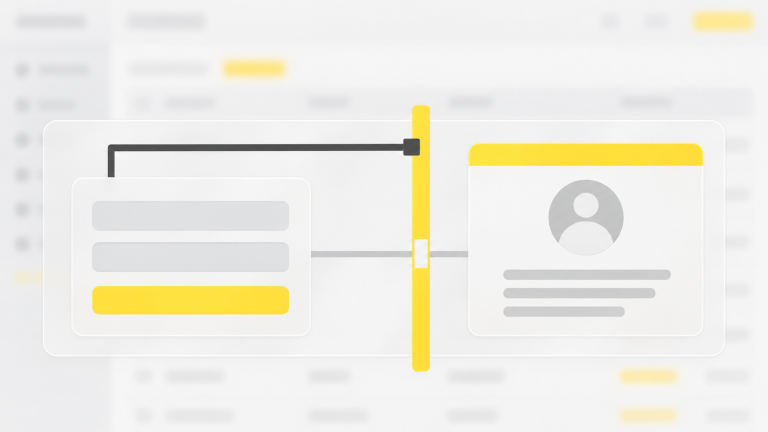
A malware scan answers one question: is there anything on my site that should not be there? A useful scan does not only say yes or no. It tells you where: which file, which post, which setting. This guide explains what a WordPress malware scanner checks, four ways to scan a site, how to read the results and how to test that your scanner works.
What a WordPress malware scan checks
- Files: code that malware tends to use, such as backdoors, encoded code run by
evaland scripts that run whatever the request sends. - WordPress core and plugin files: compared with the official release. A file that differs from it is a lead to follow.
- PHP files that do not belong: in
uploads,wp-adminandwp-includes. - The database: posts and options with injected scripts or spam links.
- Uploads: a picture with code inside, or a script saved with an image name.
- Known vulnerabilities: versions of WordPress, plugins and themes with a publicly known weakness, so you know what to update first.
- Blacklists: whether Google lists the address of your home page as dangerous.
Four ways to scan a WordPress site
Compare with the official files (free, by hand)
With WP-CLI, wp core verify-checksums checks WordPress itself and wp plugin verify-checksums --all checks the plugins from wordpress.org. It shows which files differ from the official release. It does not read your theme if it is not from wordpress.org, it does not look in uploads and it does not open the database.
An online scanner of the public page
These services load your page as a visitor would and look for known bad links, redirects and blacklist entries. They are quick and need nothing installed. They cannot read the files on your server, so a backdoor that does not show on the page stays hidden.
A scanner plugin on your server
A plugin reads the files and the database where they are, so it can find what an online scanner cannot. Look for these things in one:
- It scans files and the database, not only the page.
- It compares WordPress and plugins with their official files.
- It works in short steps, so it runs on a small host.
- It quarantines a file and can put it back, and it never deletes anything on its own.
- It tells you what it sends out. The scan itself should not upload your files.
The Antivirus of Baza Helper Pro does these things: quick and full scans, a comparison with the official files, quarantine with restore, a check of uploads and of changed files every five minutes after the first full scan. See the WordPress antivirus plugin page for the whole list. It is not a firewall.
The scan of your host
Many hosts scan their servers. Ask what is covered and how you get the result. It is a useful second opinion, but you rarely see the details, and it does not tell WordPress what to restore.
How to scan with Baza Helper step by step
- Open Baza Helper > Antivirus.
- Press Quick scan for code files and the files changed in the last two weeks.
- Run Full scan the first time: it reads every file and the text of posts and options.
- Open each finding, read the code around the match and decide: quarantine, restore the official file or ignore.
- Turn on Full scan by schedule so the check repeats by itself.
How to read the results
- High: code that is very likely malicious, or a WordPress core file that differs from the official one.
- Medium: a PHP file in
wp-adminorwp-includesthat is not part of WordPress. - Low: a plugin file from wordpress.org that differs from its release. The owner may have changed it on purpose, so check before you act.
A false positive is a finding that is not an attack. Read the code and the file name before you remove anything, and keep a backup. A plugin that is not on wordpress.org has no official file to compare with, so only the rules check it.
How to test a scanner safely
Antivirus makers use a harmless standard test file, the EICAR test file, which every scanner is expected to report. Get its description from eicar.org, save it as a file in the uploads folder of a test site and run a scan. A working scanner reports it. Delete the file afterwards and never do this on a live site. The Baza Helper Antivirus reports it as a high-severity finding.
How often to scan
- After you install or update a plugin or a theme.
- On a schedule: a full scan every week for most sites, every day for a busy store.
- Between scans, a check of changed and new code files catches new files within minutes.
- Straight away after any warning from Google or your host.
What a scanner cannot do
- It is not a firewall: it finds what is already on the site and does not block requests.
- It cannot promise to find malware that is new and unknown to its rules.
- It does not close the hole. After a clean-up, update everything, change the passwords and remove abandoned plugins.
If the scan finds something
Do not delete in a hurry. Make a copy, change the passwords and clean step by step. Our guide WordPress site hacked: what to do in the first hour goes through it. If you would rather have a person do it, see the WordPress security service.
Questions about WordPress malware scans
Is there a free WordPress malware scanner?
Yes, in parts. The WP-CLI checks above are free, and online scanners of the public page are free to try. A scanner that reads your files and database on the server is usually a plugin; the Antivirus of Baza Helper is a Pro feature.
How do I scan WordPress for malware without a plugin?
Use WP-CLI to compare core and plugin files with the official ones, look for PHP files in uploads, sort files by the date they changed, and check .htaccess, wp-config.php and the users list. It takes longer and does not read the database for you.
Can a scanner remove malware by itself?
A careful one does not. The Baza Helper Antivirus never deletes anything on its own: you review each finding, then quarantine it, restore the official file or ignore it.
Does scanning slow the site down?
The Baza Helper Antivirus scans in short steps, so it works on a small host, and its check of changed files looks at the size and time of files first, so it costs almost nothing.
Are my files sent anywhere?
Not by the scan. Google Safe Browsing and VirusTotal are optional and use your own keys: Safe Browsing gets only your home page address and VirusTotal only the hash of a suspicious file.
Find malware before your visitors do
Baza Helper Pro scans your files and database for malware, compares WordPress and plugins with their official files and watches code changes while the site runs. A suspicious file goes to quarantine and comes back in one click.
- 01
Scans every file and the database
- 02
Compares with the official files
- 03
Quarantine and restore in one click

In this category
-
-
-
-

-