Antivirus: scan your site, read the findings and restore files
Antivirus in Baza Helper Pro checks your WordPress site for malware and for files that were changed without you knowing. It scans the files and the database, compares WordPress and the plugins from wordpress.org with their official files, and keeps watch for new code while the site runs. It is not a firewall: it does not block requests, and a change is noticed within minutes, not at once.
Before you start
- Baza Helper Pro with the Antivirus feature in your plan.
- Administrator access to the site.
- A backup of the site before you restore or delete anything.
Run a scan
- Open Baza Helper > Antivirus and choose the Findings tab.
- Press Quick scan for a short check, or Full scan for every file and the database.
- Wait. The scan runs in short steps, so it works on a small host. Press Stop to cancel it.
A quick scan checks code files and the files changed in the last two weeks. A full scan reads every file and the text of posts and options. A scan does not change or delete anything by itself.

Read the findings
Each finding shows the file, the rule that matched and its severity:
- High: code that is very likely malicious, or a WordPress core file that differs from the official one.
- Medium: a PHP file inside
wp-adminorwp-includesthat is not part of WordPress. - Low: a plugin file from wordpress.org that differs from its release. The owner may have changed it, or the file belongs to another plugin with the same name, so check it before you act.
Open a finding and read the code around the match. Then decide: restore it, quarantine it, or ignore it if it is not a problem.
Quarantine and restore
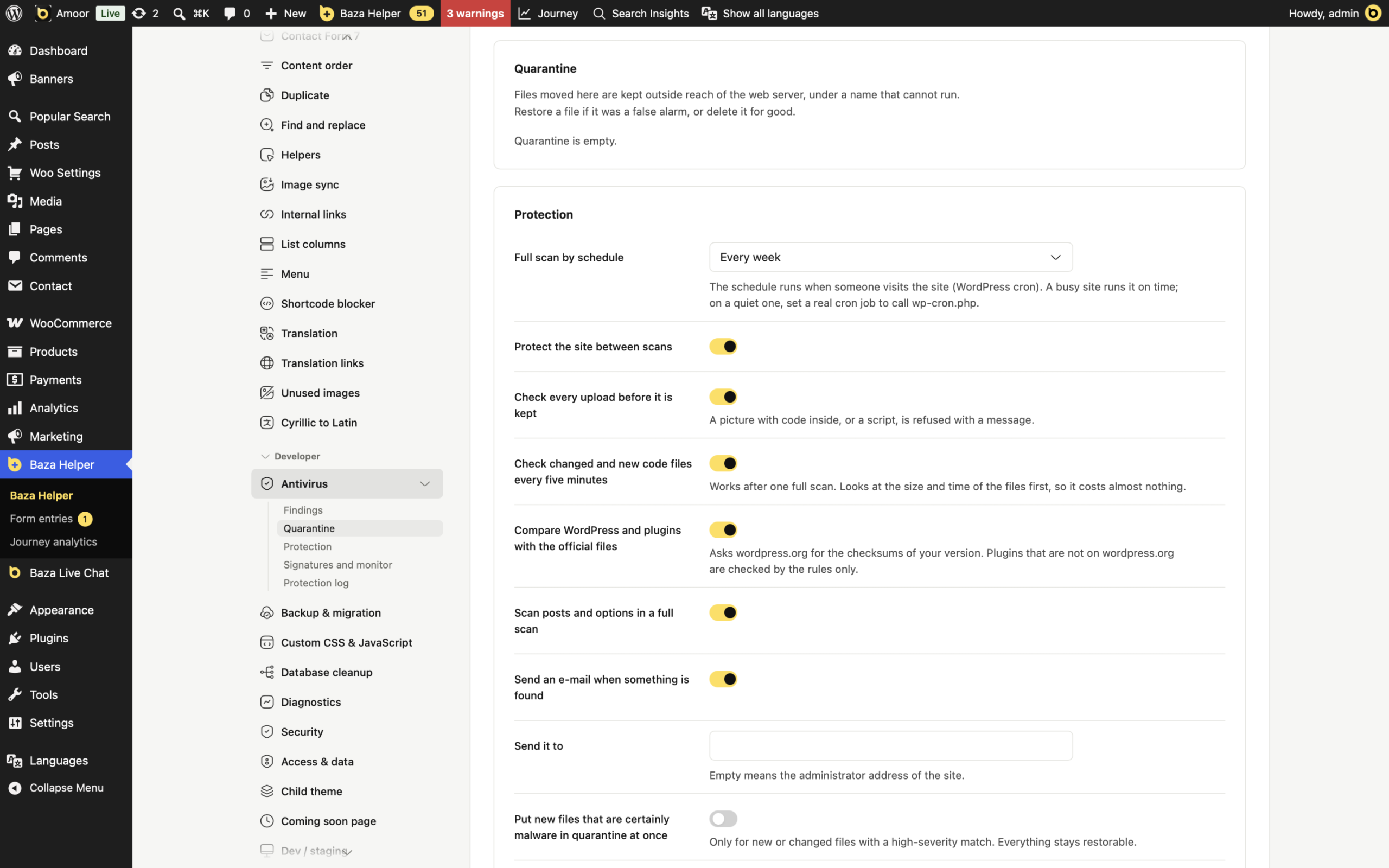
Quarantine moves a file out of reach. It is renamed to a name that cannot run and kept in a folder the web server does not serve. Restore puts the file back exactly as it was and closes the finding. Delete removes the file for good, so use it only when you are sure.
- Antivirus never touches
wp-config.php, the rootindex.phpand.htaccess, files outside your WordPress folder, or symbolic links. - The quarantine folder stays when you uninstall the plugin. Delete its files yourself once you are sure.
Restore an official file
For a WordPress core file or a plugin from wordpress.org, Restore the official file downloads the official version, checks it against the official checksum and keeps the changed file in quarantine. A plugin that is not on wordpress.org has no official file, so it is checked by the rules only.
Protection between scans
- Uploads are checked before they are kept. A picture with code inside, or a script, is refused with a message.
- After the first full scan, changed and new code files are checked every five minutes. This is a short delay, not an instant block.
- You get an e-mail when an administrator account is added and when something is found. There is at most one e-mail of each kind an hour, and it names only paths and file names.
- With Full scan by schedule turned on, a full check runs every day or every week. WordPress cron runs it when someone visits the site. On a quiet site, set a real cron job to call
wp-cron.php.
Signatures and updates
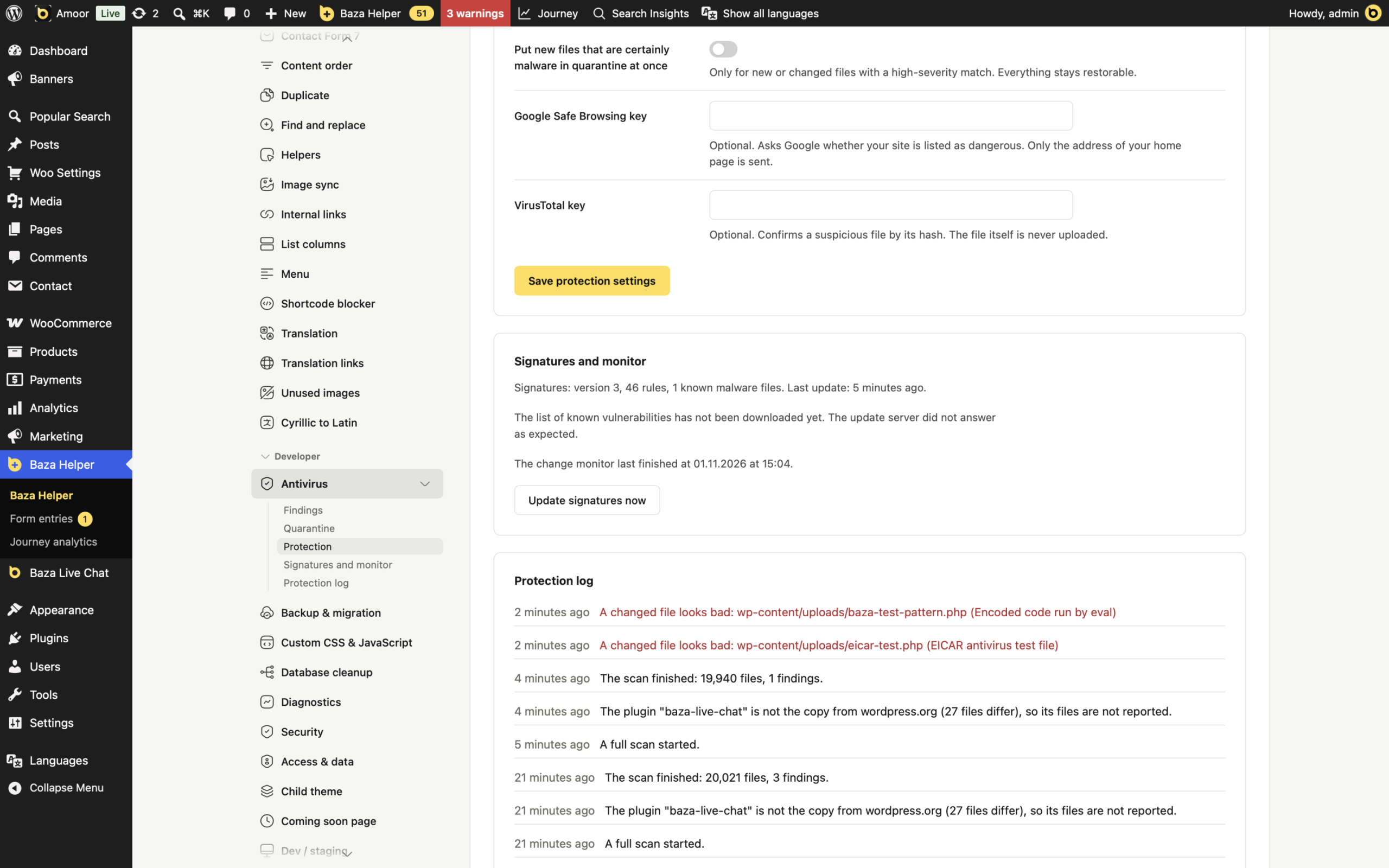
Once a day the site downloads updates of the rules and of the list of known vulnerabilities from the Baza Developers server. Press Update signatures now to check at once. Nothing about your files is sent with the update. When the server signs its updates, an update with a signature that does not match is refused, and the current rules stay in use.
Google Safe Browsing and VirusTotal keys
Both checks are optional and use your own keys, which are stored encrypted.
- Google Safe Browsing key: asks whether your home page address is listed as dangerous. Only that address is sent.
- VirusTotal key: confirms a suspicious file by its hash. The file itself is never uploaded.
If your site is infected
- Run a full scan and note the high findings.
- Quarantine the files you are sure of. Keep the others for review.
- Change the passwords of all administrators, of your hosting panel and of FTP or SFTP. Remove any administrator account you do not know.
- Restore the official core and plugin files where a finding says so.
- Clean the posts and options found by the database scan.
- Run a full scan again until it finds nothing new.
If you are not sure what to do, ask for help. Our WordPress security service includes this work, and a person checks the result with you.
Want the overview first? See the WordPress antivirus plugin page.
Looking for the big picture? Read WordPress malware scanner: how to check your site for malware.
Find malware before your visitors do
Baza Helper Pro scans your files and database for malware, compares WordPress and plugins with their official files and watches code changes while the site runs. A suspicious file goes to quarantine and comes back in one click.
- 01
Scans every file and the database
- 02
Compares with the official files
- 03
Quarantine and restore in one click