Cloudflare Turnstile (Anti-bot)
Spam and bot messages can clutter your chat and waste your valuable time. To prevent this, Baza Live Chat integrates seamlessly with Cloudflare Turnstile, a free, privacy-preserving alternative to CAPTCHA that stops bots without frustrating your real visitors.
Follow the steps below to configure Turnstile for your chat widget.
Step 1: Generate Your Cloudflare Turnstile Keys
To use this feature, you will need a free Cloudflare account to generate your security keys.
- Log in to your Cloudflare dashboard at dash.cloudflare.com.
- In the sidebar menu, navigate to Turnstile.
- Click on the Add Site (or Add Widget) button.
- Fill in your Site Name and Domain (the website where Baza Live Chat is installed).
- Choose your preferred widget mode (we recommend Managed or Invisible for a seamless user experience).
- Click Create.
- Cloudflare will generate a Site Key and a Secret Key. Keep this page open, as you will need to copy these keys in the next step.
Step 2: Configure Baza Live Chat Settings
Now that you have your keys, it’s time to add them to your plugin settings.
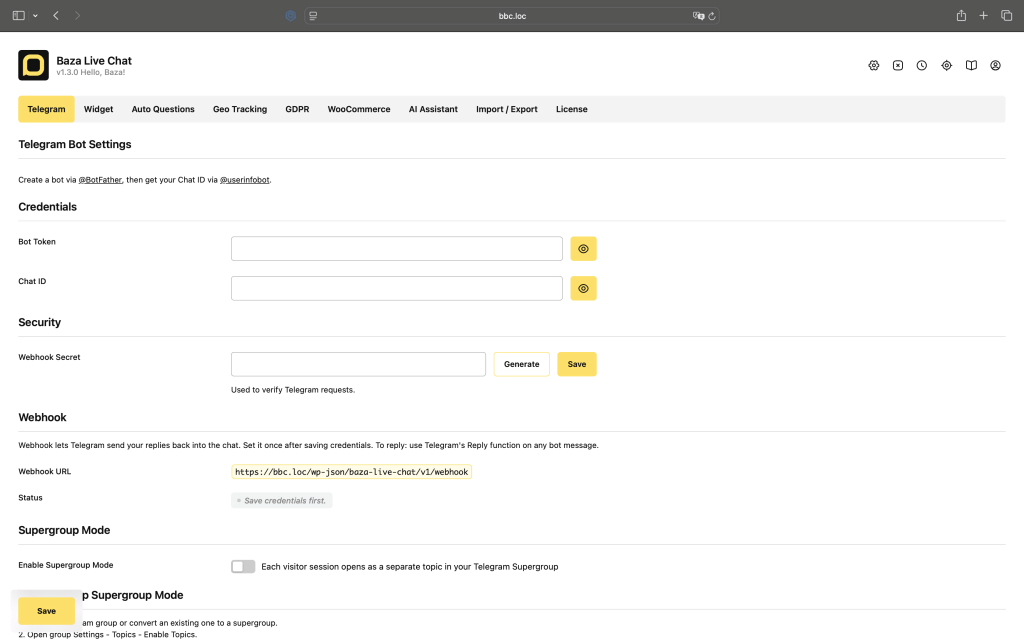
- Go to your WordPress Admin Dashboard.
- Navigate to the Baza Live Chat settings panel.
- Click on the Widget tab at the top.
- Scroll down to the Anti-bot Protection (Cloudflare Turnstile) section.
- Paste the keys you obtained from Cloudflare into the corresponding fields:
- Site Key: Paste your public site key here.
- Secret Key: Paste your secure secret key here. (Once saved, the secret key will be hidden for security purposes, but you can enter a new value at any time to replace it).
- Scroll to the bottom of the page and click the yellow Save button.
How to Disable Anti-bot Protection
If you ever need to turn off the Cloudflare Turnstile protection, simply return to the Widget tab, delete the contents of both the Site Key and Secret Key fields so they are completely empty, and hit Save.
Last Modified: 20.08.2026