Services
Services are the core bookable entities in the plugin – a room, a specialist, a piece of equipment, or any other resource that can be booked by the hour. Each service has its own settings that override the global defaults when needed. You can display a service on any page using its shortcode or combine all services in a single calendar where customers can pick the one they need. Only published services are available for booking.
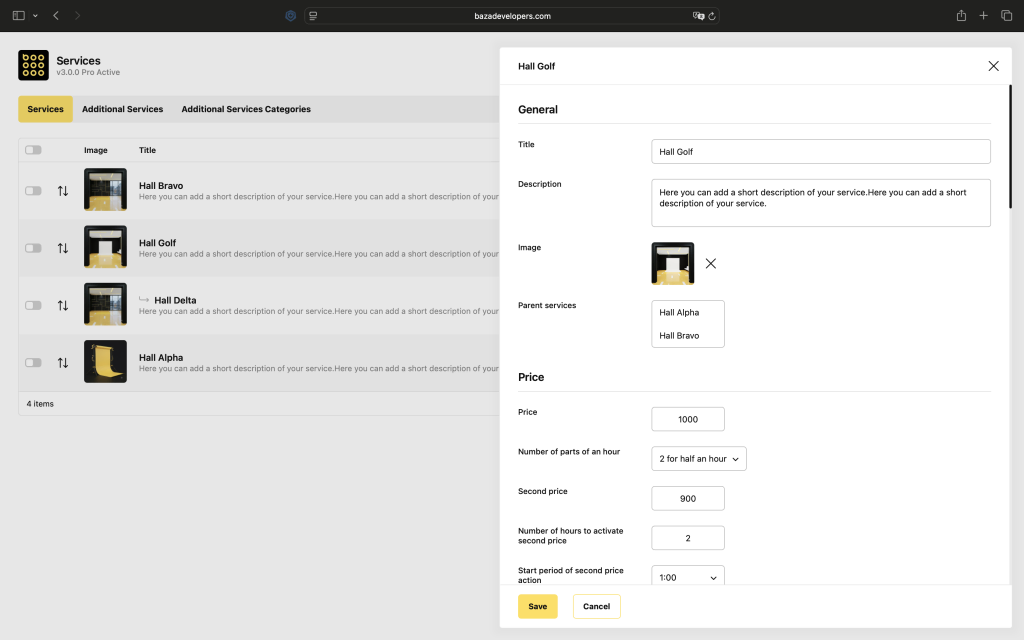
Name
The name of the service that customers will see in the booking form. It is not recommended to change the name of an active service.
Featured Image
An image for the service that can be shown in the booking form. Optional.
Excerpt
A short description of the service that can be shown in the booking form. Keep it brief. Optional.
Price
The base price is the default cost of the service. It is used everywhere when no other price rule applies. It is not recommended to leave this field empty or set it to zero.
The second price is an alternative price that kicks in after a certain number of booked slots. For example, if the base price is 1000, the second price is 900, and the threshold is 2 slots, then the first two slots cost 1000 each, and everything after that costs 900.
The “Number of hours to activate the second price” field sets how many slots need to be booked before the second price takes effect.
Time & Period
The start and end periods of the second price action define the time range during which the second price can apply. For example, if set from 12:00 to 18:00, the second price will only be available for bookings within that window. Leave it empty to cover all working hours.
The number of parts of an hour defines how an hour is divided into slots – for example, 2 parts of 30 minutes, 3 parts of 20 minutes, or 4 parts of 15 minutes. The base price and second price are split proportionally across the slots.
Amount
The minimum number of hours or time slots required for booking sets how many slots a customer must select to complete a booking. If they select fewer, the form cannot be submitted.
Surcharges
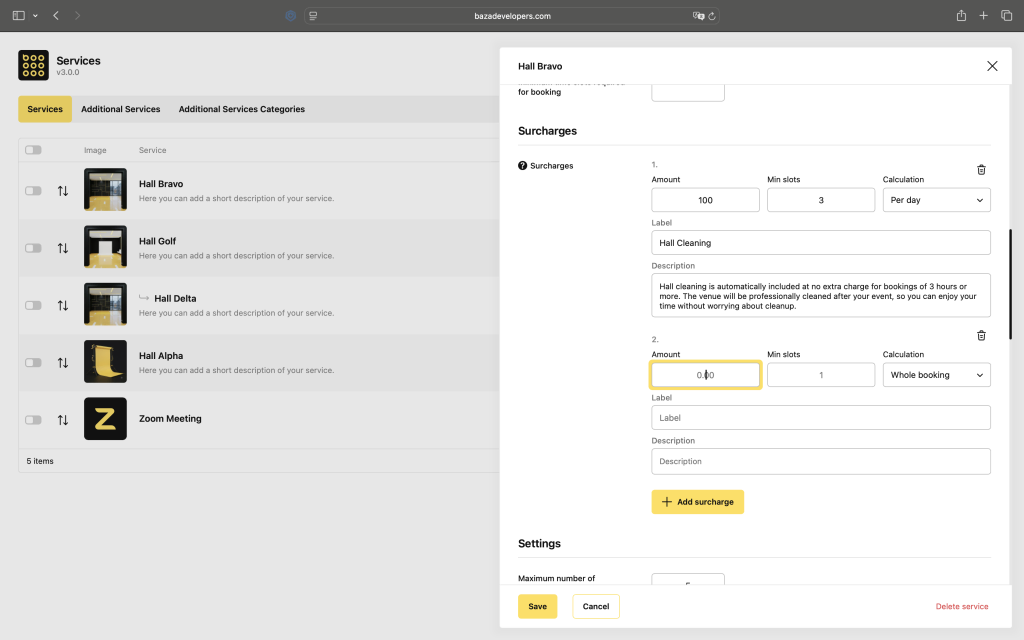
Surcharges are set up per service, so each service, a specific hall, room, or package, has its own independent set of rules. You can add as many surcharges as you need to a single service, and they all apply at the same time, there’s no limit on how many you stack.
For each surcharge, set an Amount, the minimum number of slots required to trigger it, and how it’s calculated, Per day or Whole booking. Add a Label and a short Description, both shown to the client right on the booking page, so every extra charge is clear before they book.
There are no date or day-of-week restrictions, a surcharge simply activates once its conditions are met, and you’re free to combine as many rules as your pricing needs.
Additional
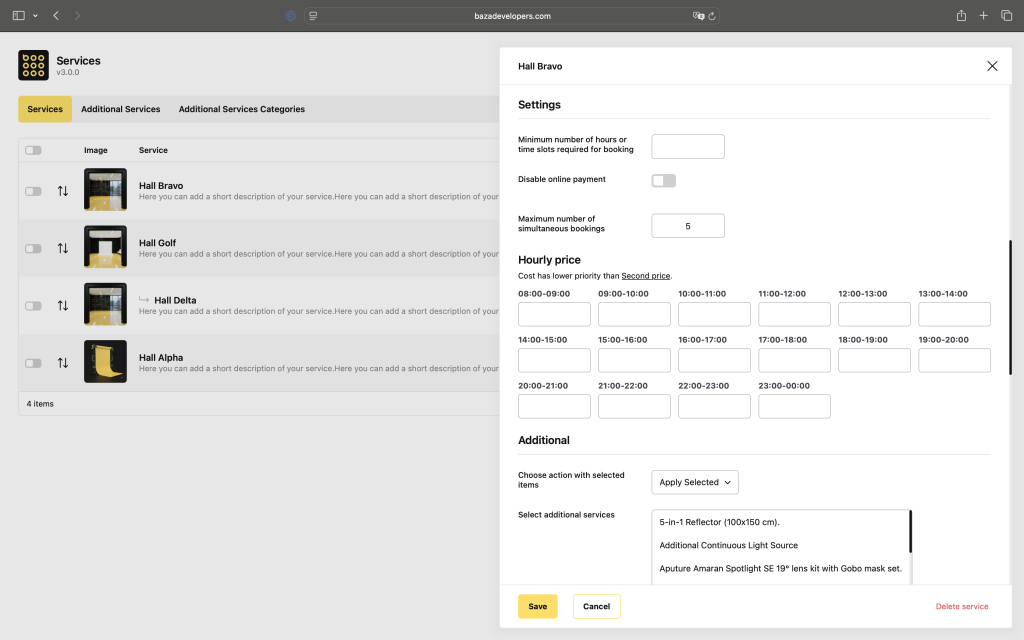
Lets you attach additional services to this booking service. Use the action selector to either include only the selected additional services or include all except the selected ones. If nothing is selected, the rule applies to all additional services.
Hourly Price
Lets you set a custom price for specific hours of the day. This overrides the base price for those hours. The second price is not affected by this setting.
Schedule Settings
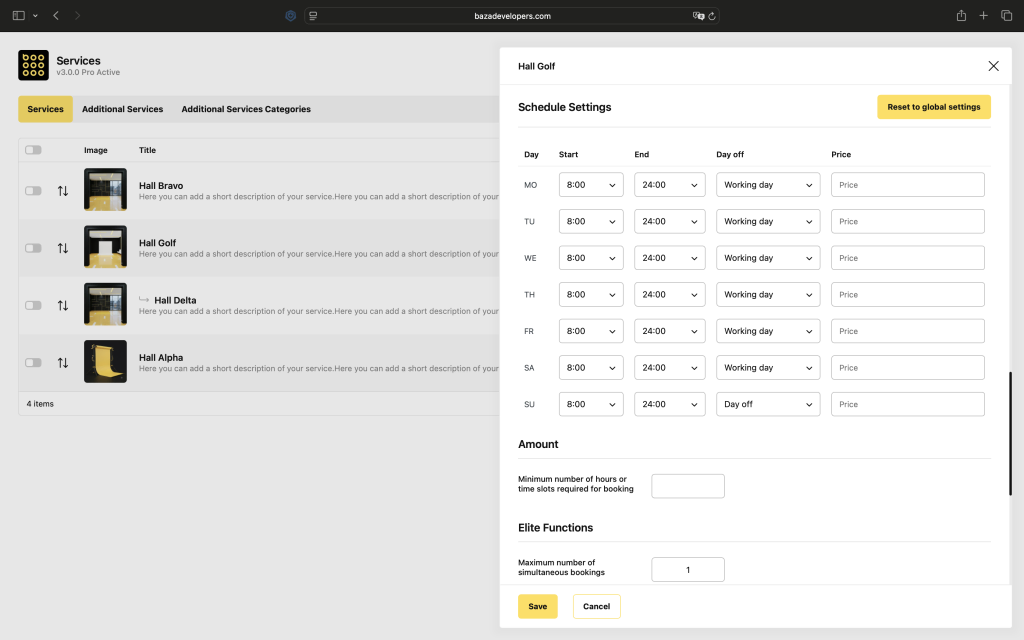
These settings work the same way as the global schedule but apply only to this service and take priority over global ones. Use the “Reset to global settings” button to revert back to the defaults.
Elite Functions
The maximum number of simultaneous bookings limits how many bookings can be made for the same time slot. Useful when you have multiple units of the same resource, for example, three identical rooms.
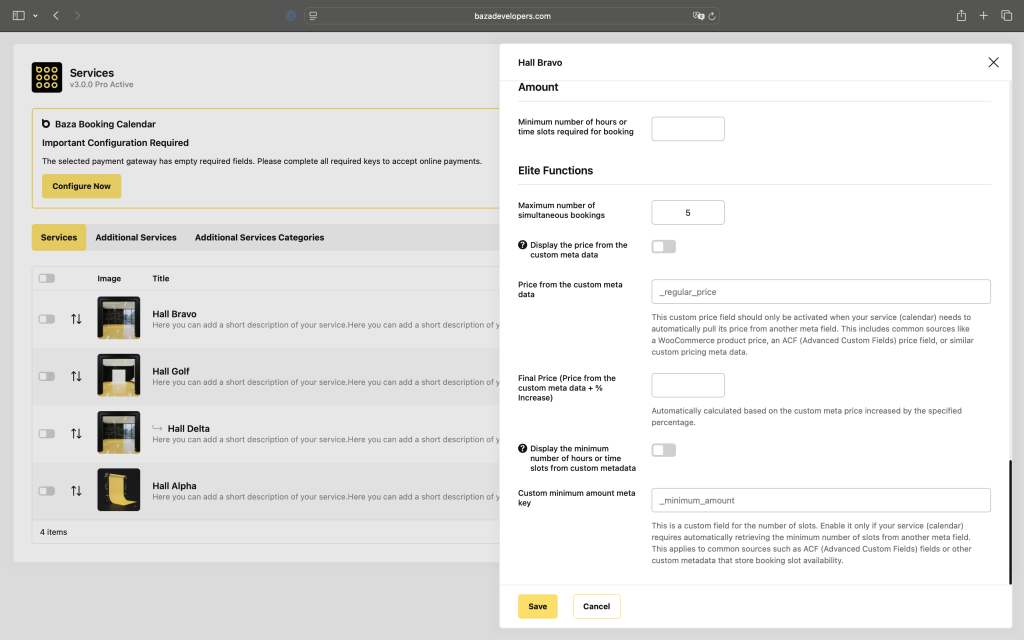
Enabling this option displays the price from the custom metadata, using a price value stored in a custom field of the page where the calendar is placed instead of the base price set here.
Enabling this option displays the minimum number of hours or time slots from custom metadata, using a minimum slot value stored in a custom field of the page instead of the value set in Amount.
The custom minimum amount meta key is the name of the custom field whose value will be used as the minimum number of slots.