Special Offers
Overview
Special Offers lets any Additional Service be presented as a targeted, time-limited discount offer that appears to customers when they select a related main service. This document covers how to configure a Special Offer and how each field behaves.
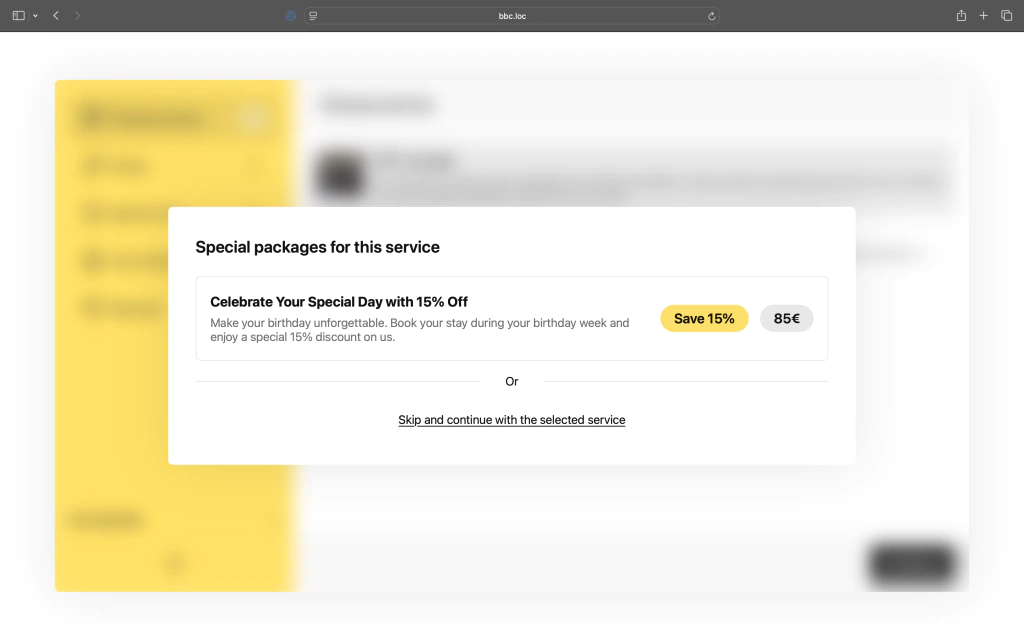
Where to Configure
Special Offers are configured directly on the Additional Service edit screen (Edit Additional Service), not in a separate settings page. Any additional service can be turned into a special offer.
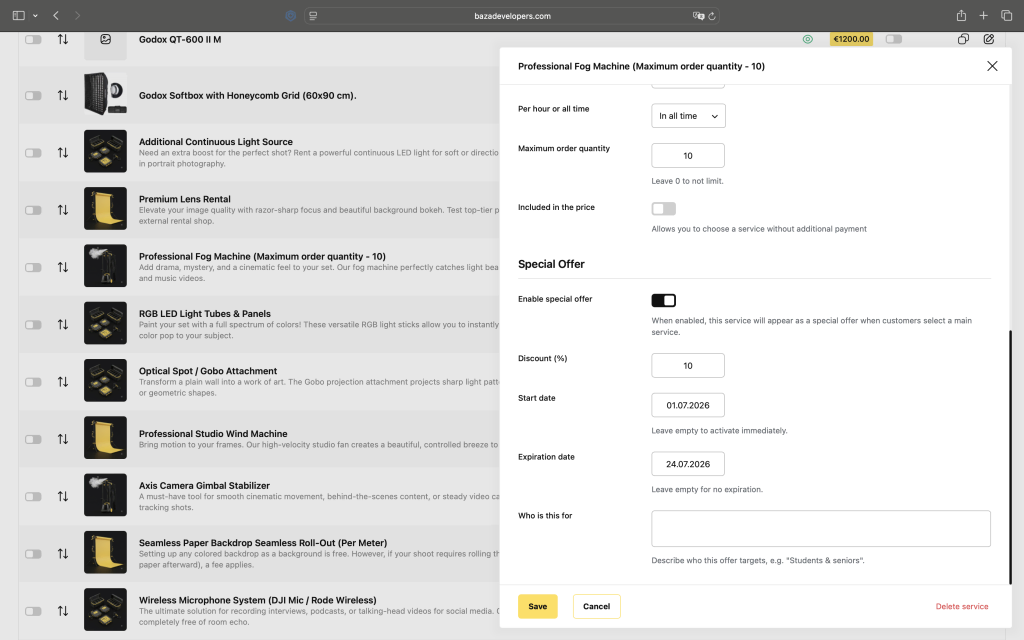
Fields Reference
Price
The base price of the additional service. This is the “full price” that the discount percentage is calculated against.
Maximum order quantity
Limits how many units of this additional service a customer can add to a single booking. Set to 0 for no limit.
Per hour or all time
Determines whether the service’s price applies per hour or as a flat one-time charge, regardless of booking duration. Dropdown options: In all time (flat) or per-hour billing.
Included in the price
Toggle. When enabled, the service can be selected by the customer at no additional charge, it’s bundled into the main booking price. This is independent of the special offer settings below.
Enable special offer
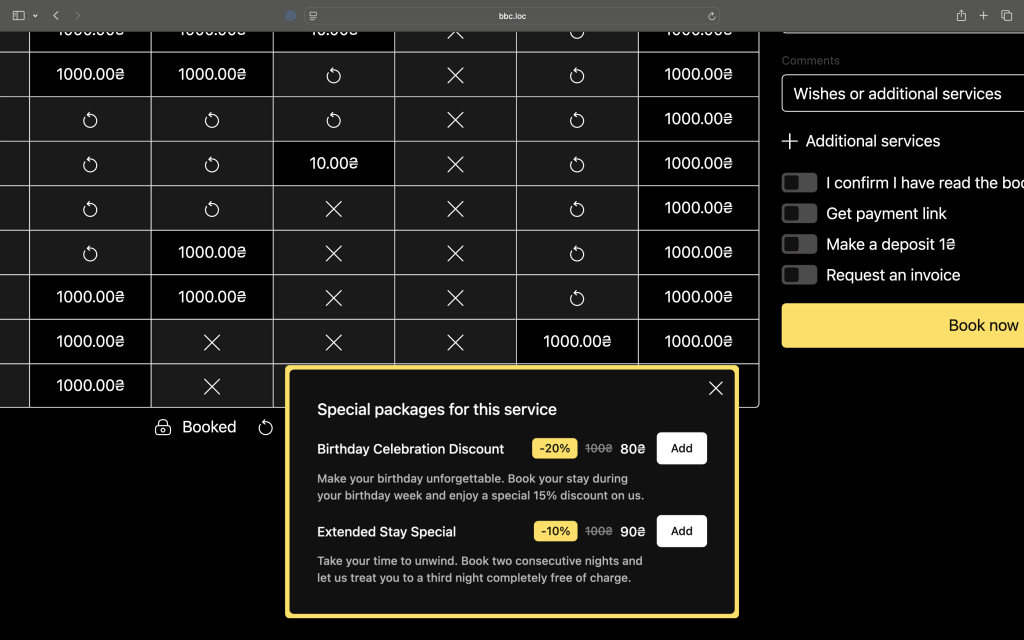
Toggle. This is the field that activates the Special Offers behavior for this additional service.
When enabled:
- The service stops behaving as a regular line-item in the additional services list.
- Instead, it surfaces as a popup/offer card when the customer selects the main service it’s associated with.
- The
Discount (%),Expiration date, andWho is this forfields (below) become relevant and should be filled in.
When disabled (default): the service behaves as a normal additional service with no special presentation.
Discount (%)
The percentage discount applied to this additional service’s price when the special offer is active and accepted by the customer. Enter a plain number (e.g. 20 for 20% off), no % symbol needed.
If left empty, no discount is applied, the offer will display but at full price. Always fill this in when running an active promotion.
Expiration date
Optional. Format: DD.MM.YYYY.
- If set, the offer automatically stops appearing to customers after this date, no manual action required.
- If left empty, the offer runs indefinitely until
Enable special offeris manually turned off.
This is the recommended way to run time-boxed promotions (seasonal discounts, launch offers, etc.) without needing to remember to disable them later.
Who is this for
A short, customer-facing description of the target audience for this offer (e.g. "Students & seniors", "First-time bookings only", "Weekend sessions").
- This text is displayed directly on the offer card shown to the customer, it is not an internal-only label.
- Keep it short and specific. It’s the primary way the customer understands why they’re being shown this particular offer.
Excerpt
A short description of the additional service itself (what it is, when it applies, any conditions). Shown alongside the service in listings.
Additional Services Categories
Additional services are organized under a dedicated taxonomy, Additional Services Categories (e.g. Audio Equipment, Backdrops & Backstage Comfort, Lighting & Special Effects, Photo & Video Gear).
- Assign the service to one or more relevant categories using the checkboxes.
- New categories can be created inline via + Add New Category without leaving the edit screen.
- Categorization keeps the additional services list organized as the catalog grows, and does not directly affect special offer targeting (targeting is handled via
Who is this forand the main-service association).
Featured image
The image shown for this additional service (and on its special offer card, if enabled). Click the image to edit or replace it.
How the Popup Trigger Works
A special offer is tied to a main service. When a customer selects that main service during booking, any additional service with Enable special offer turned on (and not expired) appears as a popup suggesting the add-on, with the discount applied and the Who is this for text shown on the card.
Setting Up a New Special Offer — Step by Step
- Go to Additional Services and either edit an existing service or click Add Additional Service.
- Fill in the standard fields: title, price, quantity limit, per hour/all time, featured image, excerpt.
- Toggle Enable special offer on.
- Enter the Discount (%).
- (Optional) Set an Expiration date if this is a time-limited promotion.
- Fill in Who is this for with a short, customer-facing audience description.
- Assign the service to the relevant Additional Services Categories.
- Click Update (or Publish for a new service).
The offer will now appear automatically to customers who select the associated main service, until it’s manually disabled or its expiration date passes.
Notes & Recommendations
- Always fill in Discount (%) when
Enable special offeris on, an offer with no discount doesn’t fulfill its purpose and may confuse customers. - Use Expiration date for any promotion tied to a specific time window rather than relying on manually toggling the offer off later.
- Keep Who is this for short and specific, it’s customer-facing copy, not an internal note.