General Settings
General Settings is where you configure the core behavior of the plugin. Everything here applies to all your services by default, unless you override it in the settings of a specific service. This includes the cart, calendar behavior, booking form options, and other general functions.
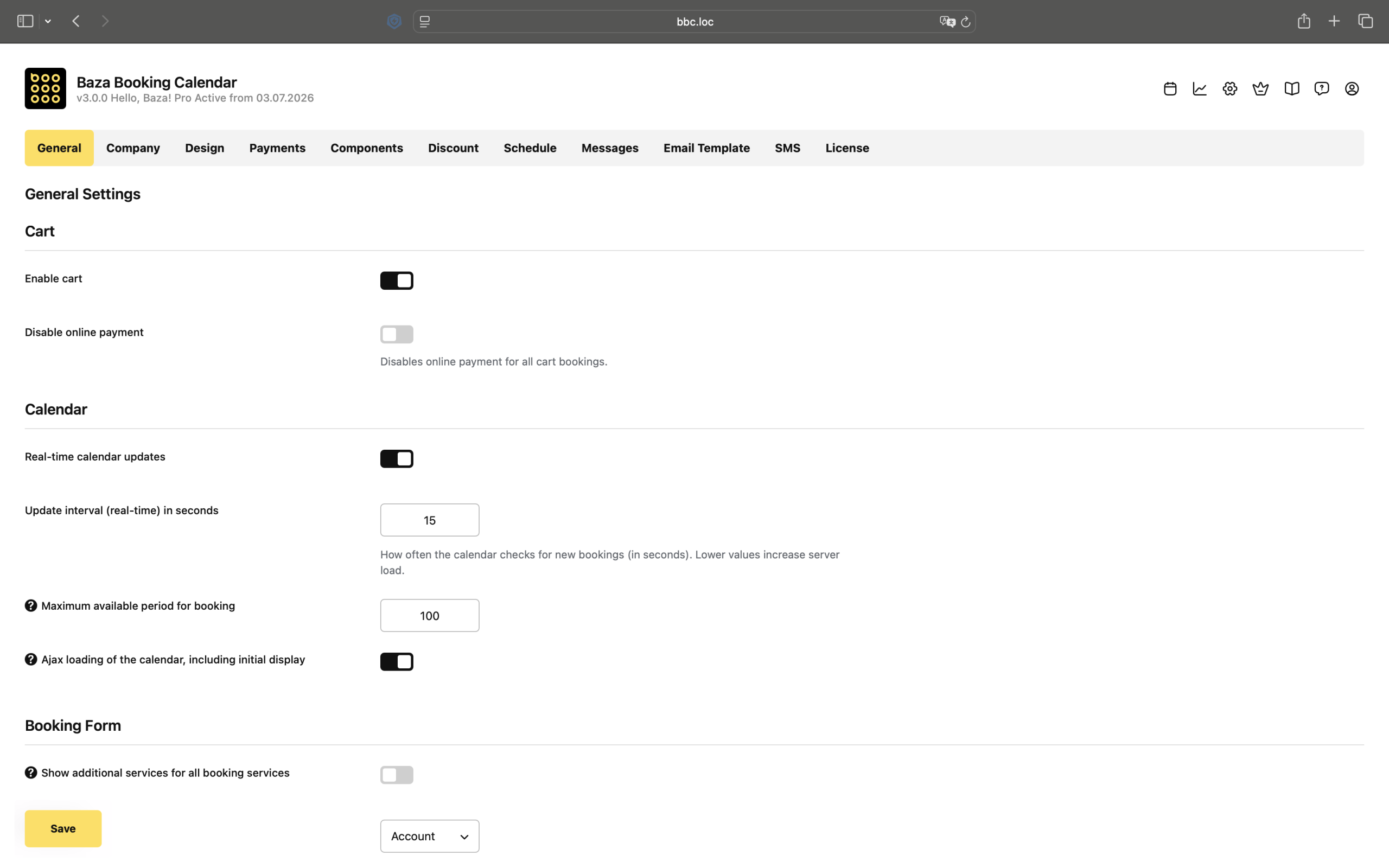
Cart
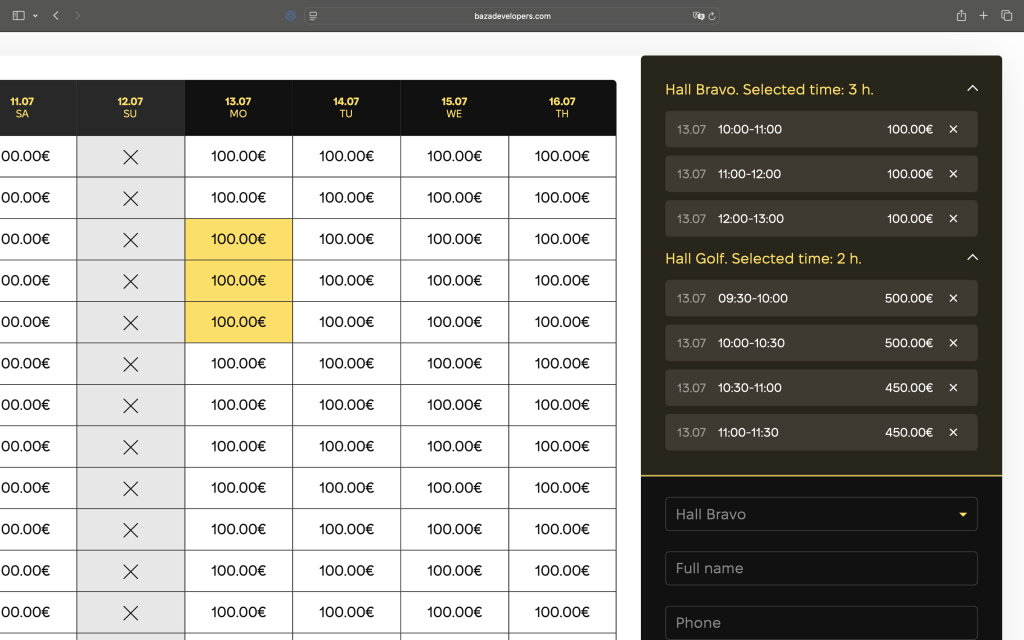
Enable cart turns on the shopping cart feature, which lets customers add multiple services to a single order and pay for everything at once.
Disable online payment turns off the ability to pay online for all cart bookings. This is useful if you’d rather accept payments manually or in person.
Calendar
Real-time calendar updates keep the calendar in sync in the background. If someone books a time slot while another customer is choosing, that slot automatically becomes unavailable without needing to reload the page.
Update interval sets how often the calendar checks for new bookings, in seconds. The default is 10 seconds. Keep in mind that lower values mean more frequent server requests, which can increase server load.
Show bookings for all services at once displays bookings from every service on the same calendar view, instead of showing only the bookings for the service currently selected. This gives you a full picture of your schedule without switching between services.
Maximum available period for booking lets you limit how far into the future customers can book. For example, set it to 180 to allow bookings up to six months ahead. Leave the field empty to allow bookings with no time limit.
Ajax loading
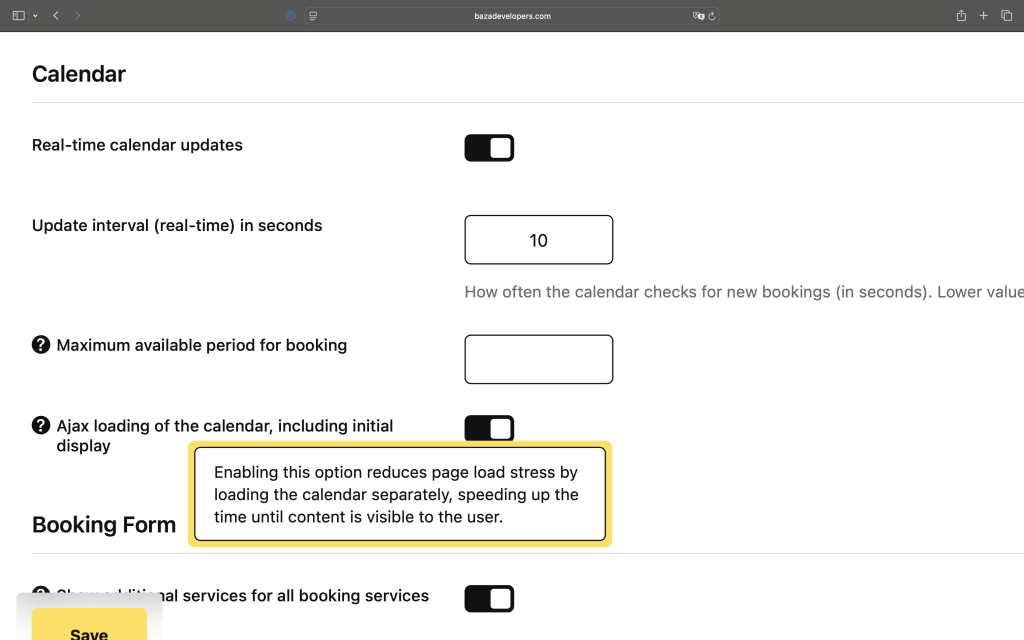
Ajax loading of the calendar, including initial display loads the calendar in the background after the rest of the page has loaded, so visitors see the page content right away without waiting on the calendar. Keep in mind that a calendar loaded this way won’t be indexed by search engines, so avoid enabling this option on pages where SEO matters.
Booking Form
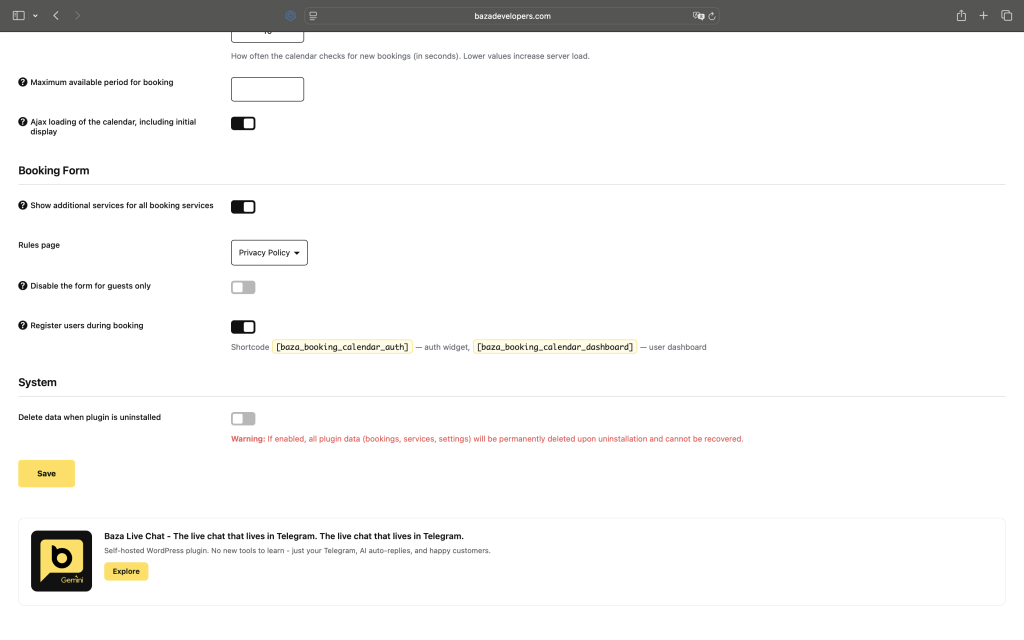
Show additional services for all booking services displays the additional services from every listing in the booking form, regardless of which main service the customer selected. This is useful when your extra services are shared across multiple locations or service types.
Rules Page
Rules page lets you select a page containing your terms or booking rules. A link to that page appears in the booking form, along with a checkbox the customer must agree to before completing a booking.
Disable The Form For Guests Only
Disable the form for guests only hides the booking form from visitors who aren’t logged in. Logged-in customers and administrators still see it as usual. This is useful if you want to require registration before someone can book.
Register users during booking automatically creates a user account from the information the customer fills in while booking, and links the booking to that account. This lets you build a customer database, track booking history, and run loyalty programs. Use the shortcode baza_booking_calendar_auth to add a login or registration widget to any page, and baza_booking_calendar_dashboard to show customers their own booking history.
System
Delete data when plugin is uninstalled controls whether the plugin’s data is removed along with the plugin itself. By default, this is off, so bookings, services, and settings remain in your database if you deactivate or delete the plugin, in case you reinstall it later.
If enabled, all plugin data (bookings, services, settings) is permanently deleted when the plugin is uninstalled and cannot be recovered. Only enable this if you’re certain you no longer need any of that data.