Journey Analytics
Journey analytics connects a form entry with the path that led to it. Instead of seeing only a name and a message, you see the pages the visitor opened, the buttons they clicked, the sections they scrolled to and the steps they took before they sent the form. The same data becomes charts, funnels and goal reports inside WordPress.
What Journey analytics is not
It is not a full visitor analytics service. It records only the visits that have a path attached to a form entry or to a goal, and it does not count visitors who never send a form and never reach a goal.
Before you start
- Baza Helper with Journey analytics available in your plan.
- The Form entries feature turned on, so that entries are kept.
- Analytics tracking turned on in Baza Helper.
- If your site requires consent for analytics, the visitor must accept analytics before the path is collected.
Step by step
Step 1: Open Journey analytics
In the WordPress admin menu, open Baza Helper and choose Journey analytics. The page has three tabs: Analytics, Funnels and goals and Collecting.
Step 2: Turn on collecting
Open the Collecting tab and tick Collect the visitor’s path and attach it to entries. The label of the switch shows whether collecting is on or off. Until it is on, no new paths are saved.
Step 3: Check the requirements
If collecting stays off, check the three conditions: Form entries is active, analytics tracking is on in Baza Helper, and the visitor has accepted analytics where consent is required. The page shows a message for each condition that is not met.
Step 4: Wait for the first visits with a path
Let visitors use the site. Each new entry that has a path is marked with the path. The Analytics tab shows how many of the newest entries have a path and how many entries exist in all, so you can see when the data starts to build up.
Step 5: Read the Analytics tab
Open the Analytics tab. Choose the period in the filter (for example the last 30 days or all time). Charts show entries and the average time, and the comparison line shows how the figures changed against the period before. Switch between bars and a table to read the exact numbers.
Step 6: Export the report
Use Download CSV for the numbers, or Download PNG and Download SVG for the charts, to share them with your team or to keep a copy.
Step 7: Create a funnel
Open the Funnels and goals tab and press Add a funnel. Give the funnel a name. A funnel is an ordered list of steps that a visitor takes on the way to a result. You can create up to 10 funnels.
Step 8: Add the steps of the funnel
Press Add a step and choose what the visitor must do: open a page, click something, scroll the page to a percentage, see a section, start a form or send it. For a page or a button, write the text or the address it must match (for example contains the value /contact). Keep the steps in the order the visitor takes them. You can drag a step to change the order.
Two step types come with a hint on the screen:
- Page view: with the choice page and equals, the value is picked from a list headed Choose a page. The list holds the home page and up to 200 published pages, posts and products, shown by title and address. For an address that is not in the list choose Another address… and type it. With starts with or contains you type the address.
- Click: type the text of the button or link, its id, or a name that you give the element in the HTML as
data-track-id="name", for example<a href="/buy/" data-track-id="buy-now">and the valuebuy-now. A CSS class does not work, because the tracker needs a name it can read on the visitor’s side.
To change the order, drag a step by the grip at its left.
Step 9: Save the funnels
Add at least one step, check the list of steps, and press Save funnels. The funnel then appears with its numbers. If the page says the funnel is empty, check that the steps match the real addresses and texts on your site.
Step 10: Read the funnel report
The report shows how many visits reached each step, where the visitors left the funnel, and the average time to the goal. Use Steps per visit and Your most common path to see what visitors actually do before they send a form.
Step 11: Set up a goal
Goals are the results you want to count, for example a contact form sent, a buy link clicked or a phone number tapped. Choose a goal from the list in Funnels and goals, then check the entries it counts in the report.
Step 12: Start from a template
Under Templates made from your site, choose a ready funnel. Each template is built from the pages and forms your site really has, so check the steps after you add it and change any step that does not match.
Journey in the admin bar
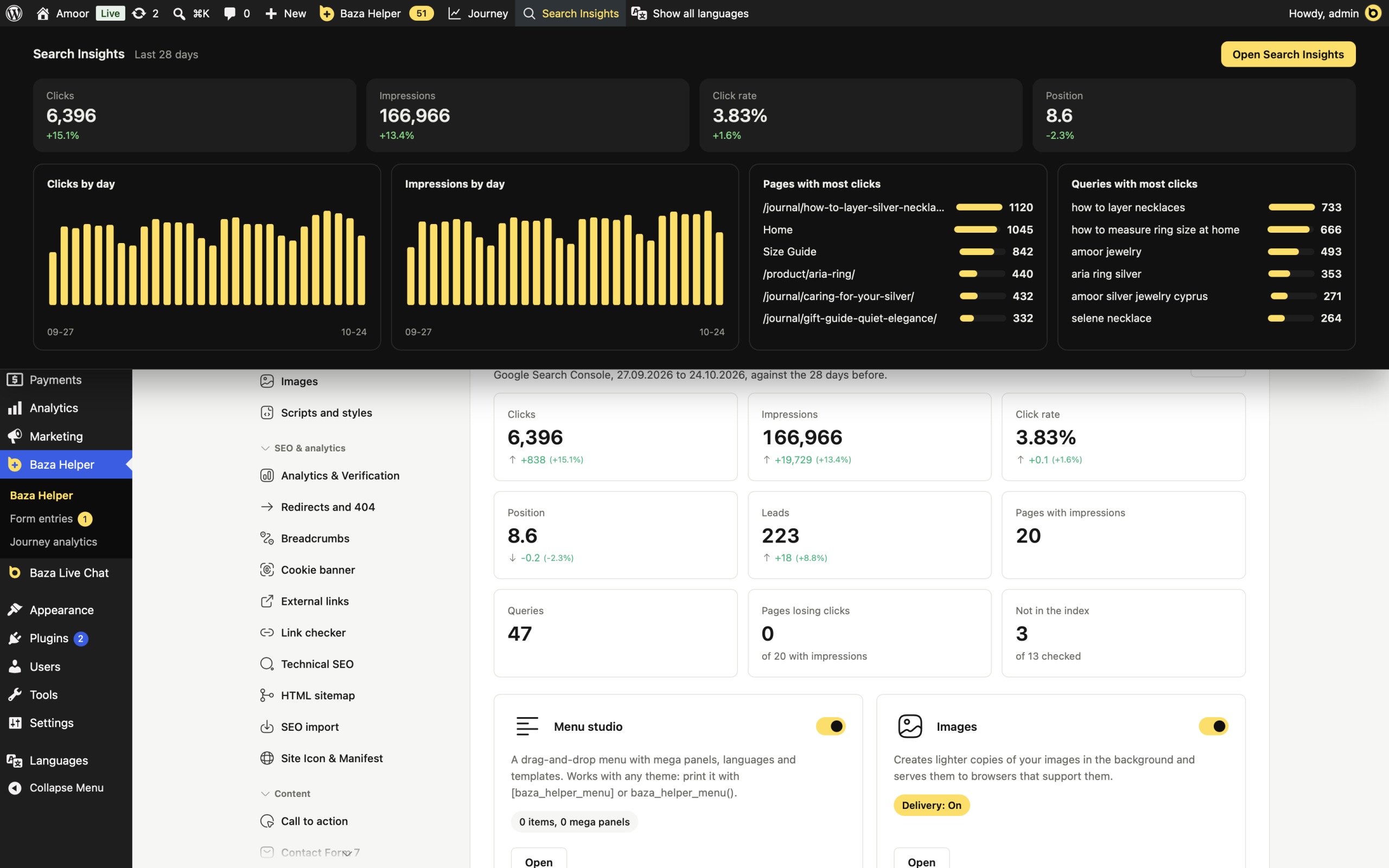
When Journey analytics is on, the WordPress admin bar has a Journey item, the short name of Journey analytics. Open it to see a pop-over for the last 30 days: the entries with a journey, the average and median time, the average steps, a chart of entries and average time, and the pages with most activity, where visits began and what visitors did. A link opens the full screen. The pop-over uses the plugin’s dark colours, and when Search Insights is on, a Search Insights item stands next to it.
Search and leads
When Search Insights has data, the Analytics tab shows a card Search and leads: the landing pages with leads, with the Google clicks, the impressions and the position of each page and the leads per 100 clicks. Only visitors whose path was kept are counted, and Google gives no query for a visit, so read the rate as a guide.
When Search Insights is on, the Keywords tab shows the goals of Journey for each page: the visits that began on the page, and how many of them reached each goal. Journey does not store the search phrase of a visit, so the count for a phrase is an estimate, marked with ~N. See the Search Insights article for the Keywords tab.
Why is the Analytics tab empty?
- No path yet: collecting is off, or no visitor has used the site since you turned it on.
- Consent: the visitor has not accepted analytics, so no path is collected for that visitor.
- Wrong steps: a funnel step does not match the real page or text. Edit the step and check again.
Look at the Collecting tab first: most empty reports are fixed there.