Messenger Buttons
Messenger buttons are shortcuts for visitors. They appear below the chat input and open a conversation or invitation in the selected service. They do not connect that service as an operator channel.
Open the settings
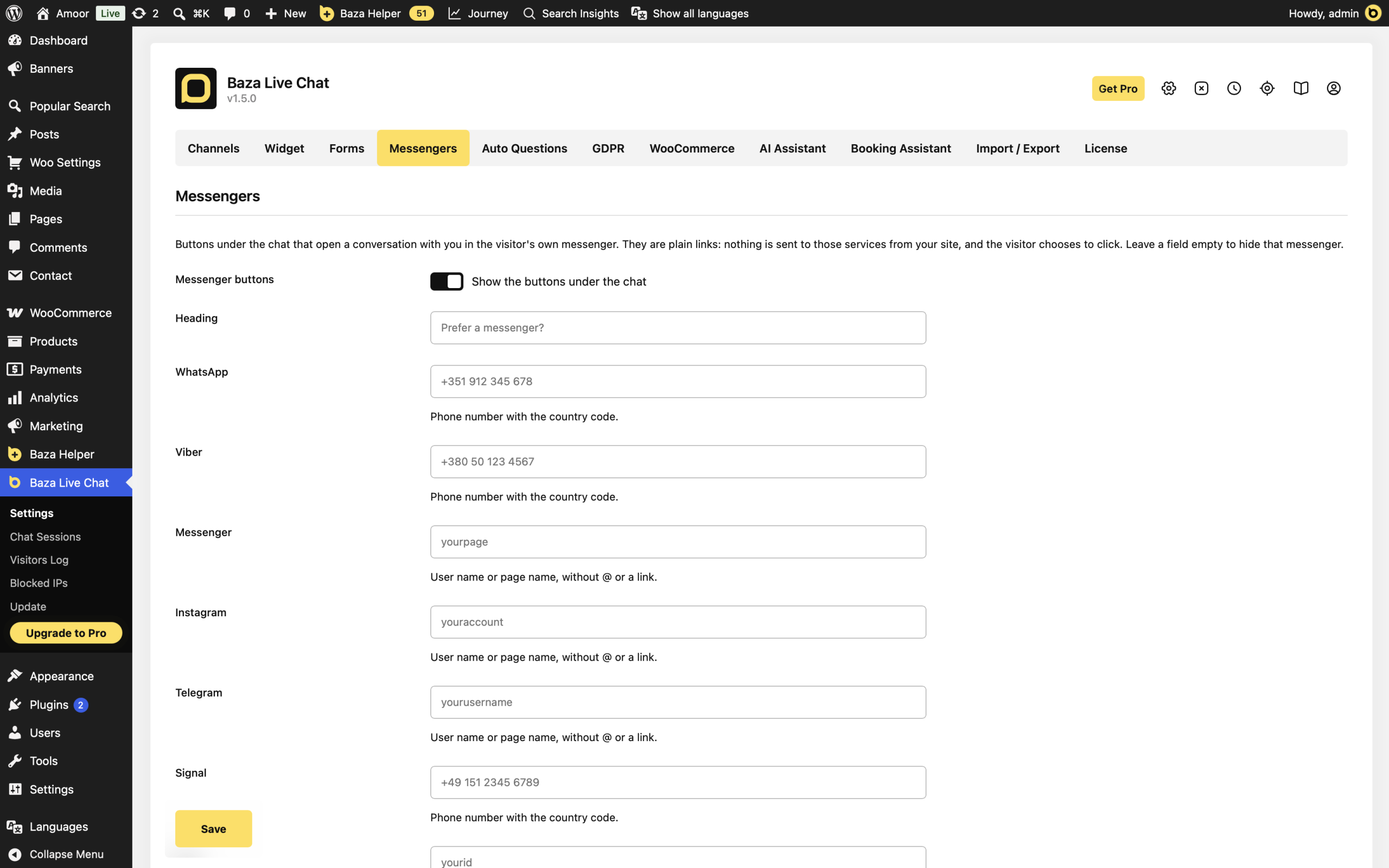
Go to Baza Live Chat > Settings > Messengers. In Heading, enter the text you want above the buttons. The default is Prefer a messenger?
Enter your contact details
- WhatsApp, Viber and Signal: enter the telephone number with its country code.
- Messenger, Instagram, Telegram and LINE: enter the user or page name without @ and without a URL.
- Discord: enter the full HTTPS invitation or profile address.
- Leave a field empty to hide that service.
Save and check
- Click Save.
- Open the website chat and check the row of messenger buttons below the input.
- Click each configured button and confirm that it opens the intended account or invitation.
What happens when a visitor clicks
These are ordinary links, such as wa.me, m.me, ig.me and t.me. The buttons do not load external messenger scripts or send chat data to those services by themselves. The visitor chooses when to follow a link.
To receive website conversations and answer them from a messenger, configure it separately under Channels. Signal and LINE are visitor buttons, not operator channels in this version. Discord is available as both a visitor link and a receive-only operator webhook; the two settings serve different purposes.
If a button is missing or opens the wrong place
- Check that the field is not empty and that you saved the settings.
- For a phone number, include the country code. For an account, use its name rather than a copied profile URL.
- For Discord, use a complete HTTPS address.
- Check the destination on a device that can open the selected messenger.