Microsoft Teams
Microsoft Teams uses two connections: a Workflow webhook receives website messages, while an Outgoing webhook sends your team’s replies back to the chat. Set up both if you want to answer visitors from Teams.
Receive chat messages
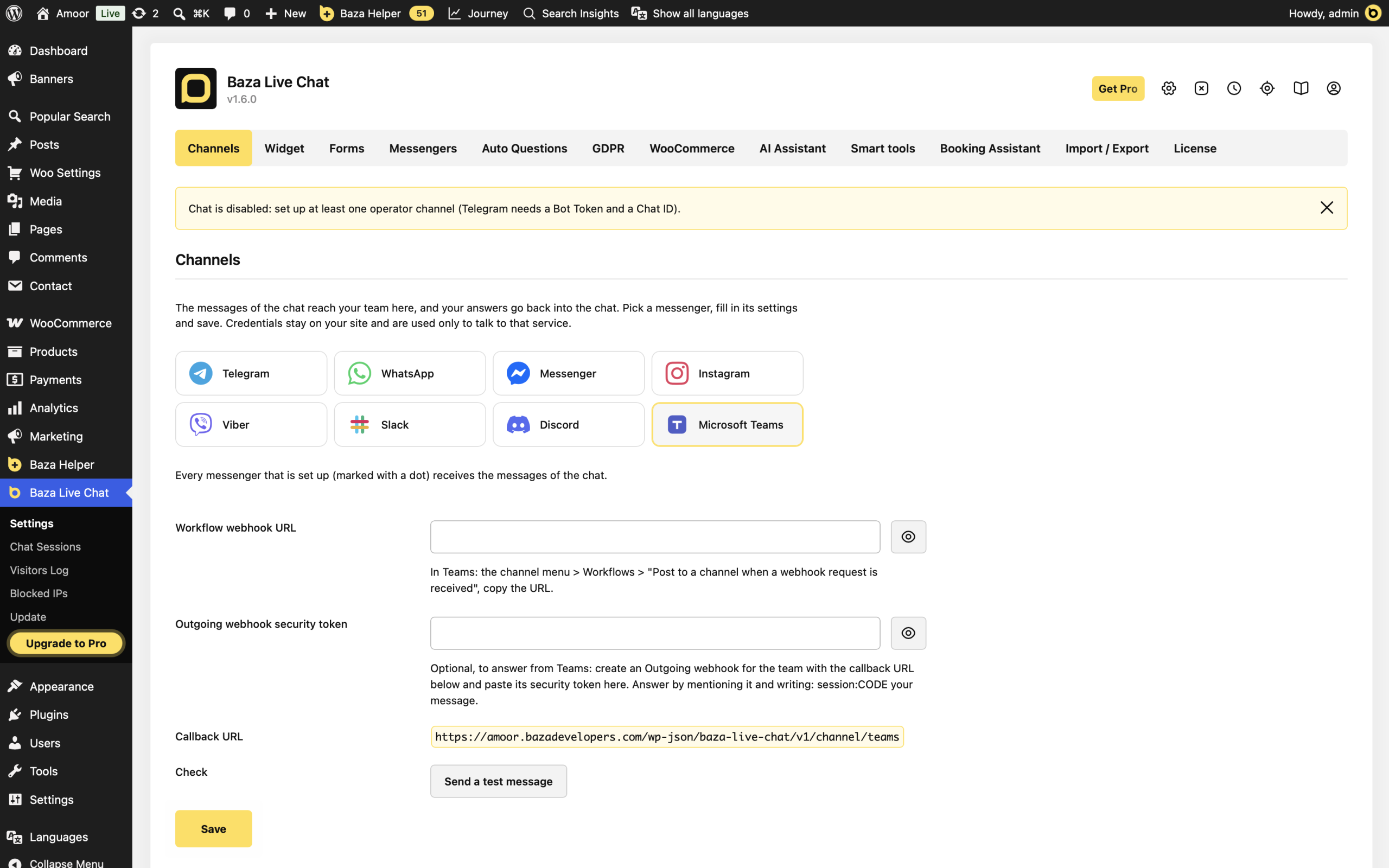
- In Teams, open the channel menu and choose Workflows > Post to a channel when a webhook request is received.
- Set up the workflow for the channel and copy its webhook URL.
- In WordPress, open Baza Live Chat > Settings > Channels and choose Microsoft Teams in Messenger.
- Paste the address into Workflow webhook URL and click Save.
- Click Send a test message and check the Teams channel.
Enable replies
- Copy Callback URL from your WordPress settings. Use your own site’s address, not the local address in the screenshot.
- Create an Outgoing webhook for your team in Teams, using that callback URL.
- Copy the security token supplied by Teams into Outgoing webhook security token in WordPress, then click Save.
Reply to a visitor
Send a message from the website chat. In Teams, mention the outgoing webhook bot and write session:CODE followed by your answer. Replace CODE with the conversation code from the received notification. For example: session:CODE Hello, how can I help? Check that the answer appears in the website chat.
If it does not work
- No notifications: save the Workflow webhook URL first, run Send a test message and read the returned error.
- Replies do not arrive: receiving notifications alone does not enable replies. Check the Outgoing webhook, its callback URL and the security token.
- Teams does not accept the answer: mention the outgoing webhook bot and include session:CODE with the correct conversation code.
- Signature rejected: copy the security token from the outgoing webhook you configured. It is different from the Workflow webhook URL.
Last Modified: 30.10.2026