Viber
Viber works as an operator channel through a bot. You need its authentication token from the Viber Admin Panel. Viber business bots may be paid; check Viber’s terms before setting one up.
1. Connect the bot
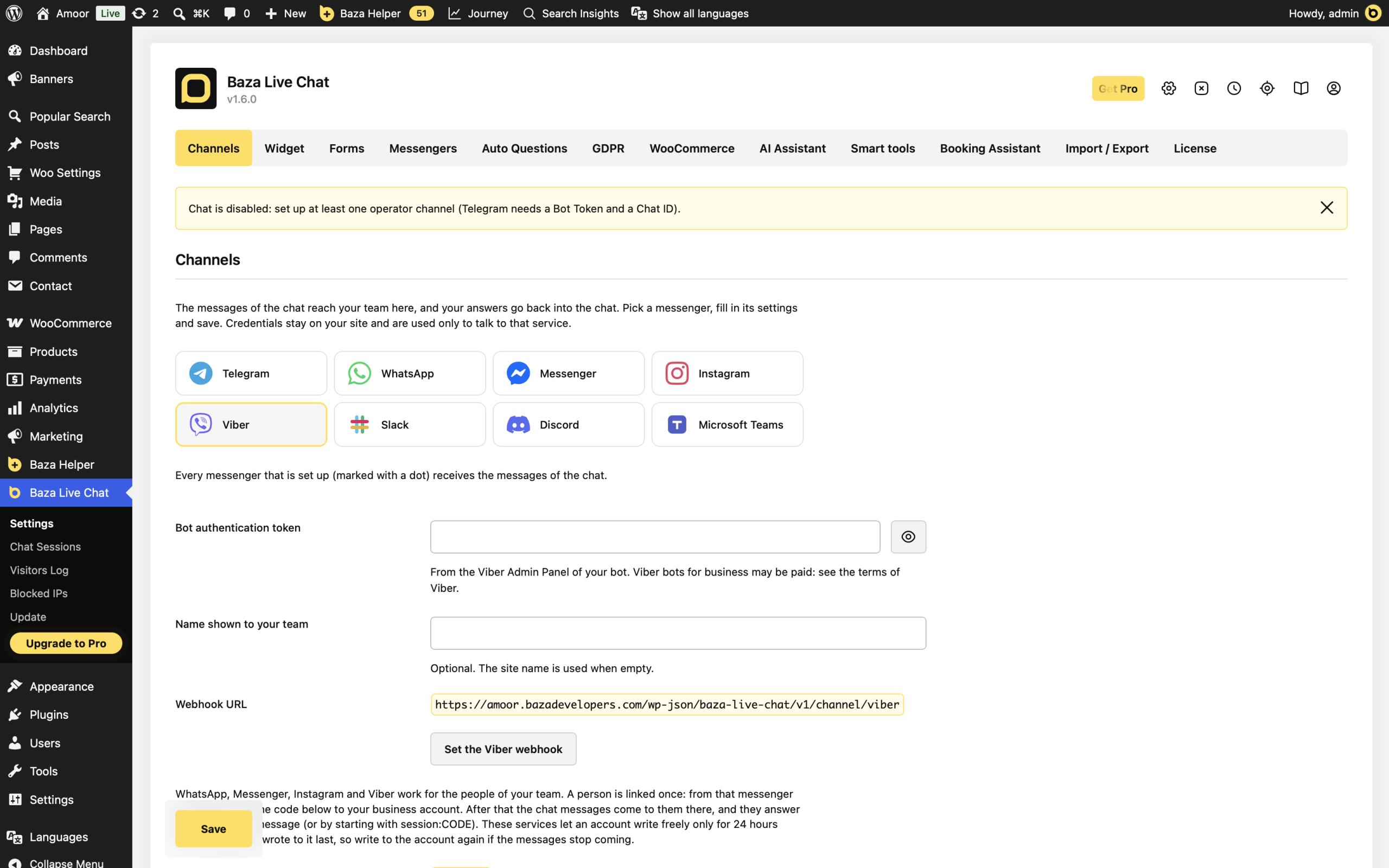
- Open Baza Live Chat > Settings > Channels in WordPress and choose Viber in Messenger.
- Copy your bot’s token from the Viber Admin Panel into Bot authentication token.
- Optionally fill in Name shown to your team. If you leave it empty, the plugin uses the site name.
- Click Save, then Set the Viber webhook. The callback address is shown in Webhook URL.
2. Link your team
- Find Linking code in the same channel settings.
- Each operator sends link CODE to the Viber bot from their own account, replacing CODE with that linking code.
- Check Linked people and click Send a test message.
- Send a message from the website chat, then answer its notification in Viber. Check that your answer appears on the website.
Viber can return the chat code with the message context. You can also start an answer with session:CODE to identify the conversation explicitly. This is useful when you are handling several visitors.
If it does not work
- No notifications: check the saved bot token, webhook registration and staff linking. Read the test result and the latest chat error in settings.
- Messages stop: write to the bot again. The settings warn about the service’s 24-hour messaging window after the person’s last message.
- Signature rejected: confirm that the token belongs to the bot whose webhook points to this website.
- The answer goes to another chat: use the right notification’s context or start the reply with session:CODE and that visitor’s chat code.
Unlink all removes the linked people for Viber. They will need to link again before their messages can be used as operator replies.
Last Modified: 30.10.2026