Additional Services
Additional Services let you offer extra items or options alongside the main booking, equipment, props, specialists, or anything else your clients might need. They show up in the booking form and can be organized into categories.
Creating Additional Services
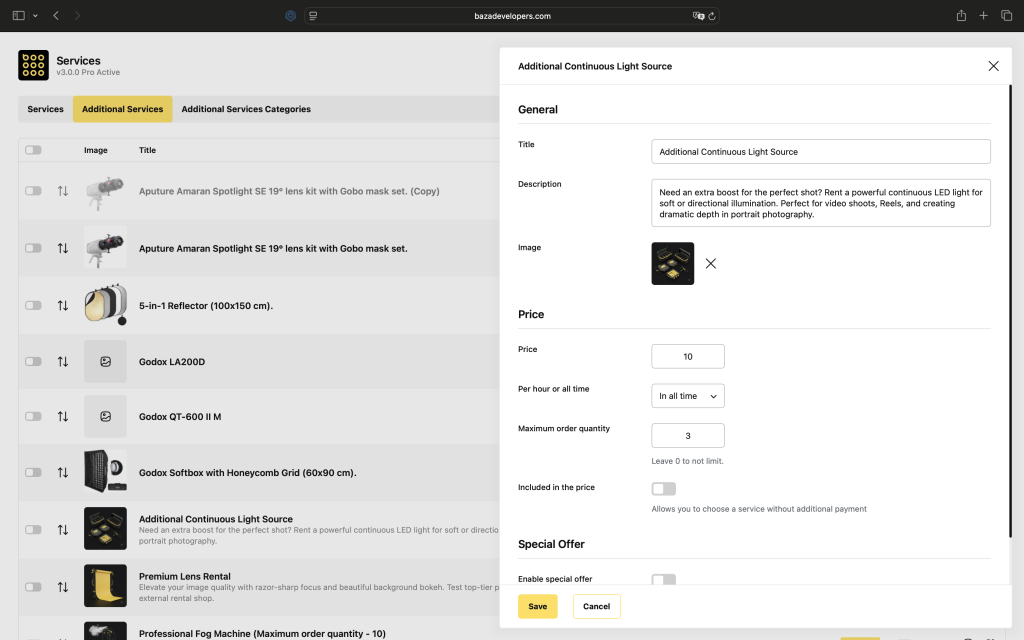
Each additional service has a name, price, optional image, short description, and a category. You can also set a maximum order quantity and choose whether the price applies per hour or as a flat one-time fee. If you enable Included in the price, the customer can add the service to their booking without any extra charge.
Maximum Order Quantity
Sets how many units of this service a customer can add to one booking. Leave it at 0 to not limit.
Per Hour or All Time
Defines how the price is calculated. Per hour means the price is multiplied by the number of booked hours. All time means it’s a flat fee regardless of booking duration.
Choosing the hours on a slider
A client does not have to take a per-hour add-on for the whole booking. Where the add-on is offered, a time slider shows the booked day, and the client picks the part of it, or several parts, when they need the add-on. The price follows the hours chosen.
- Each chosen stretch is a bar with a handle at both ends. Drag a handle to change when it starts or ends, drag the bar to move it.
- Over the free space between stretches a plus button adds another stretch. Over a stretch a minus button removes it.
- The time taken can never go below the add-on’s minimum hours, and never below one slot of the service. The minus button does not remove a stretch if that would leave less.
- If your site shows 12-hour times, the slider shows them as AM and PM too.
The slider appears only when the booked day is longer than the add-on’s minimum, since otherwise there is nothing to choose. The same slider is used in the booking popup and the cart, in the WooCommerce booking picker, in the client’s account and in the booking editor in the admin.
Included in the Price
When enabled, the customer can select this service without paying anything extra for it. Useful for services that are already covered by the base booking price.
Categories
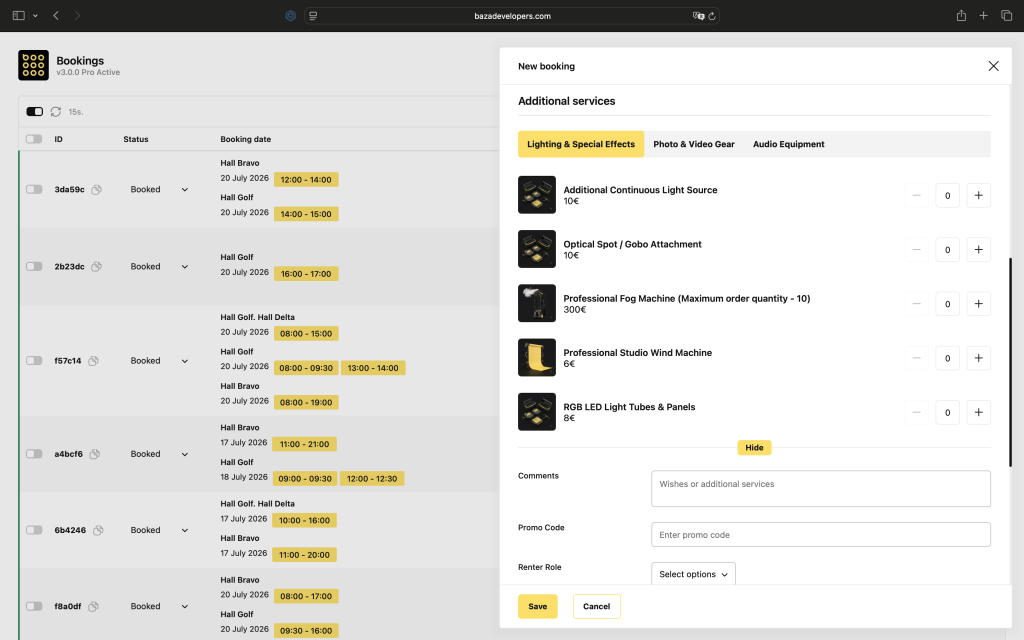
You can group additional services into categories to make them easier to browse in the booking form. Each category has a name and an optional setting that limits the customer to selecting only one service from that group.
Display in the Booking Form
Once you create additional services, they appear automatically in the booking form. Customers can browse them, see the name, image, description, and price, and add what they need to their booking. All selected services are listed separately in the booking summary.
