Search Insights: Google Search Console Data for Your AI Assistant
Search Insights is a Pro feature of Baza Helper. It connects your Google Search Console data to your own site, keeps it in your database and answers questions about it, for you and for your AI assistant. It only reads Search Console and never changes anything there.
The problem and the simple answer
To ask an assistant which pages lose traffic, you export tables from Search Console by hand, paste them into the chat and repeat it every week. Google keeps 16 months of data, the export is limited, and the assistant forgets what you pasted. Third-party connectors need an account and a monthly fee, and they give your data to someone else.
With Search Insights you connect Search Console once. The plugin copies your performance data to your site every day, and nothing goes to a third party.
Connect Google
There are two ways. Choose the one you prefer.
- Service account (recommended). Create a service account in Google Cloud and download its JSON key. Add the account’s email to Search Console as a user with read access. Paste the key in the settings (it is stored encrypted), or keep it in a file outside the web root, or in a constant in wp-config.php so that it never reaches the database.
- Google OAuth. Create your own OAuth client, enter its ID and secret, and press Connect with Google. The site keeps only the refresh token, encrypted.
Choose the property (a domain or a URL prefix) from the list the account can see. Press Test the connection: if something is wrong, the message says what in plain words.
What is stored on your site
- A daily copy of clicks, impressions, CTR and position by day, page and query, in a table of your own database.
- The first connection fills the last 90 days in small steps.
- Retention from 30 to 485 days; the default is 480. A row limit per day and a Sync now button.
- Google’s own data is 2 to 3 days late, so the newest days are not complete yet.
What the analysis shows
- The summary and the daily curve, the top pages and queries.
- A comparison of two periods.
- Pages that lose clicks (content decay).
- Queries that several pages compete for (cannibalisation).
- Pages with many impressions and few clicks, and pages whose position is just below the first page of results (opportunities).
- The full history of one page.
- Indexing: whether a page is indexed, the canonical Google chose, the last crawl and the reason when a page is not in the index, through the URL Inspection API. The status of the sitemaps too.
- IndexNow: tells Bing and the other search engines that support IndexNow about changed pages, by button, from a list of addresses, or automatically when a post is published, updated or removed.
Give your AI assistant access
The assistant gets the answers in one of three ways. Each one has its own sign-in.
- REST routes under the Baza Helper search address, with an Application Password of a user who may read them.
- Read-only API tokens. Create as many as you need, each with a name, an optional expiry and a last-used time. A token only reads search data and can do nothing else on the site. Revoke it at any time.
- An MCP address (Model Context Protocol over HTTP) with the same tokens, for clients that can send an Authorization header, for example Claude Code, Cursor or the MCP Inspector. Web connectors that require OAuth, such as ChatGPT or claude.ai, are not supported yet.
Ask in a chat
The dashboard has ready prompts to copy into Claude, ChatGPT, Gemini, Cursor or any assistant that can run commands or send web requests. They already contain the address of your site and the routes. The page also gives the lines to add an MCP server.
The assistant finds a weak page here and sends the fix as a proposal to Content Review, for example a new title, a description or an internal link. Nothing changes on the site until you press Apply.
Limits
- Search Console data is 2 to 3 days late, and Google keeps 16 months. The plugin cannot get what Google no longer has, so the longer it runs, the more history you own.
- Google returns a limited number of rows per day for a property. Rare queries are anonymised by Google and are missing.
- URL Inspection has a daily quota set by Google, about 2000 per property per day.
- The data comes from Google only. Nothing is sent to Baza Developers.
- Search Insights is a Pro feature.
Frequently asked questions
- Does it change my Search Console? No. It only reads.
- Do I need a monthly subscription to a connector? No. The data stays on your site.
- Which assistants work? Any assistant that can send an HTTP request with an Application Password or a token, or run an MCP server. Web connectors that insist on OAuth are not supported yet.
Where to find it
Open Baza Helper > Search Insights, right after Dashboard in the menu, before Content Review. It has seven tabs: Overview, Pages, Queries, Opportunities, Indexing, Assistant and Settings. Settings holds the way to connect Google, the key, the property and the copy on this site. The IndexNow card is in Indexing, next to the page check and the sitemaps. Press Save changes at the bottom of the page after you change a field. Test the connection, Load my properties and Connect with Google save the settings first.
A ready task for one page
Open a page in Pages to see its detail and press Task for the assistant. The plugin builds a text about that page and copies it: the Search Console figures of the period and how they changed, why the page is worth work (lost clicks, queries at positions 8 to 20, a low click rate), the queries it is shown for and how to hand in proposals through the Content Review API. Paste it into your assistant. The text is in English and names only addresses of this site.
Content Review changes on the charts
Each change you applied in Content Review is marked on the charts with a thin line on the day it was applied, with the title of the change in its label. The marks are on the Overview chart and on the chart of a single page. The Content Review journal shows the effect of the same change on clicks.
Search Insights in the admin bar
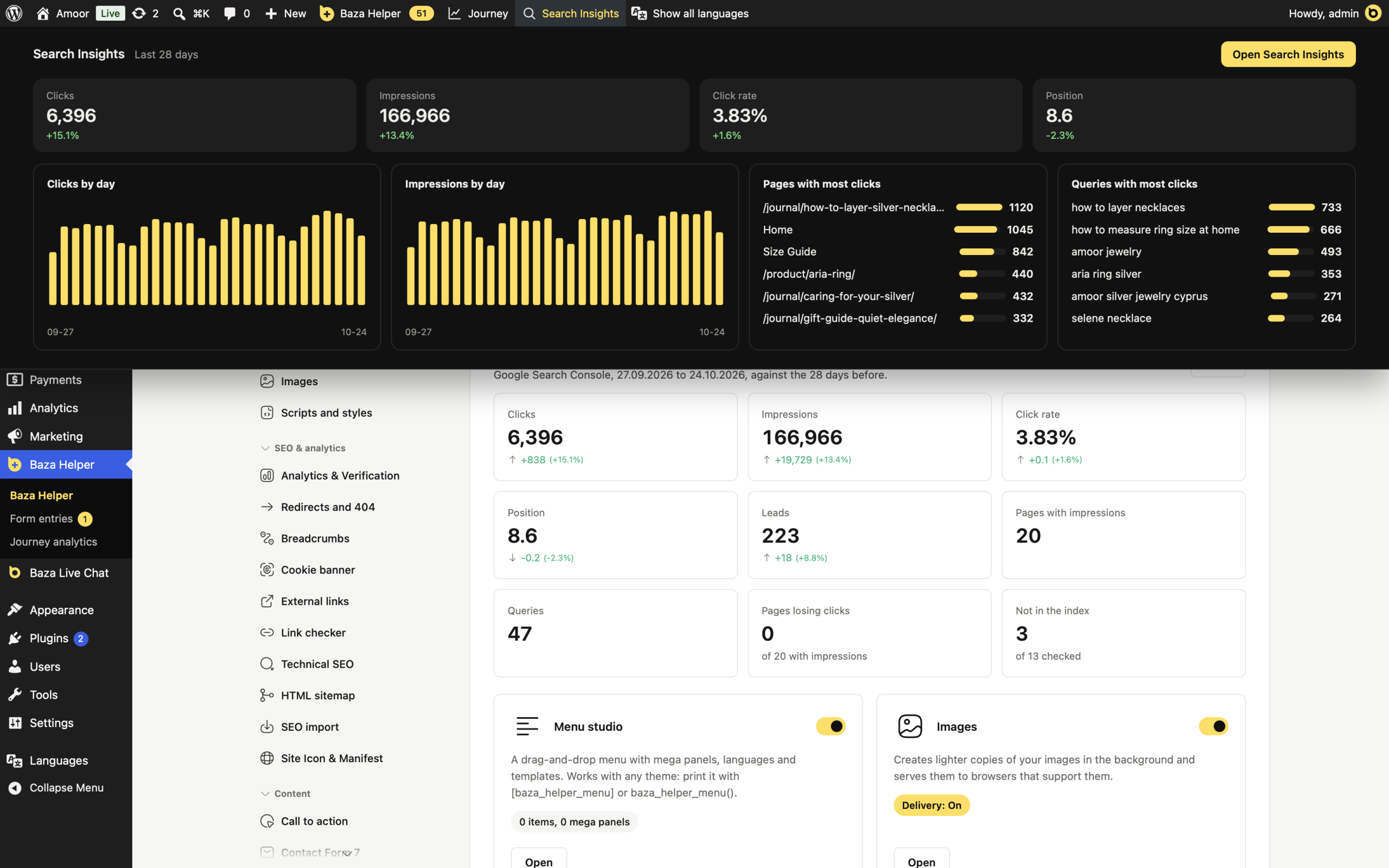
The WordPress admin bar has a Search Insights item next to Journey, the short name of Journey analytics. Its pop-over shows the last 28 days: clicks, impressions, click rate and position, each with the change against the 28 days before, two charts of clicks and impressions by day, and the pages and queries with the most clicks. The pop-over uses the plugin’s dark colours and appears for people who may use the tool.
Try it with demo data
To look around before you connect Google, open Settings and find the Demo data card. Load demo data writes 90 days of made-up figures of a fictional shop (about 20 pages, 47 queries and 13 page checks) into the plugin’s table, and Remove demo data removes only what it made. It refuses to run on a site that already holds its own data.
Settings you can change
- Connection: a service account (recommended) or a Google account (OAuth).
- Service account key: pasted (stored encrypted), a file on the server, or a constant in wp-config.php.
- The copy on this site: daily on or off, the hour (site time), days for the first fill (7 to 485), days to keep (30 to 485), a row limit per day, skipping rows with few impressions, the search type, and final data or fresh data.
- Assistant access: REST on or off, MCP on or off, who may read with a password, and requests per minute per token. Tokens have a name and an expiry: none, 30 days, 90 days or 1 year.
- IndexNow: on or off, sending on publish, update or delete, the search engine (Bing, Seznam, Naver or all of them), a key check, a list of addresses and a log.
Google does not support IndexNow, so the IndexNow card sends pages to the other engines only.
What is new
- Menu place and icon. Search Insights is right after Dashboard in the menu. The plugin header has an analytics icon for a quick jump to it.
- Figures for 28 days on the dashboard. Clicks, impressions, CTR, position and leads, each with the change against the previous 28 days.
- Leads by page. Pages where visitors started a form are shown with their number of leads, in a column, a tile and a label under Opportunities. The Journey analytics screen has a card called Search and leads. Only visitors whose journey was saved are counted. Google’s query is not linked to a lead, so the share is a guide, not an exact figure.
- Lists with one filter. Pages, Queries, Opportunities and Overview share one pop-up behind the filter icon on the right: sort order, best or worst first, the period, and the rows per page (10, 20, 50 or 100). Your choice is remembered for you.
- Scan all pages of the site. On the Indexing tab, the button checks every public address in steps of 10. Google allows about 1900 checks a day, so the scan continues in the background through WP-Cron, even when the screen is closed, and resumes the next day.
- Service account key. You choose or drag the JSON file in both ways: into the database, encrypted, or into the protected folder baza-helper-private on the server.
- IndexNow. Choose the search engine to send to: all IndexNow engines, Bing, Seznam or Naver.
- Assistant setup. The Assistant tab has tabs for Claude, ChatGPT and Gemini, with the configuration for Claude Code, Cursor, Codex (config.toml) and Gemini CLI (settings.json). The Codex and Gemini settings follow their documentation and were not yet tested live.
- Dark theme. The screen follows the dark theme of WordPress.
