Translation Links Tool: Connect Posts Across Polylang and WPML Languages
Applies to: Baza Helper 1.1 and later, with Polylang or WPML (or another multilingual plugin that keeps one post per language).
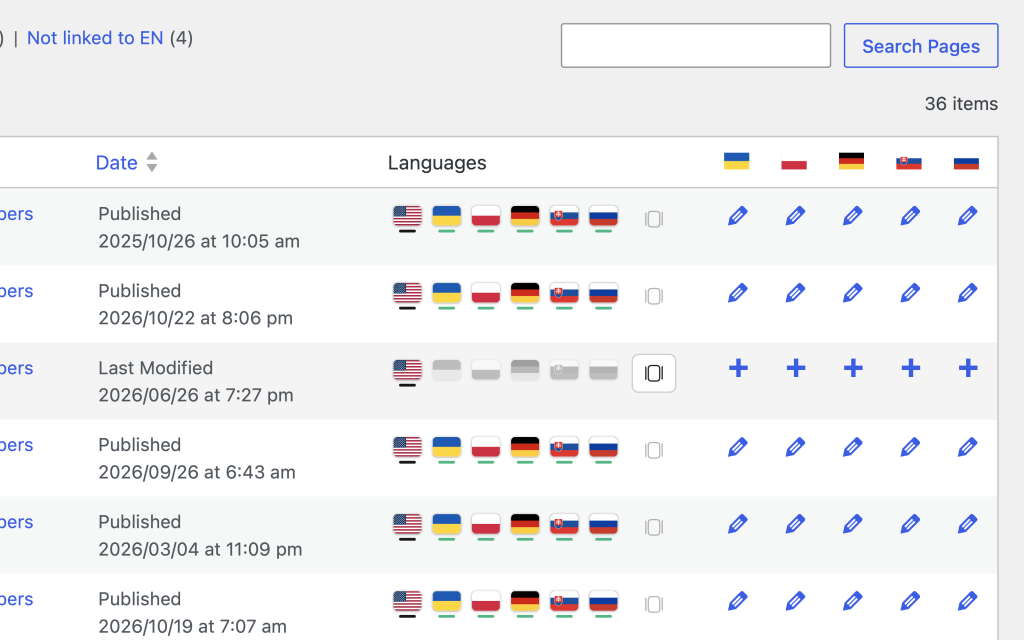
Translation links shows which posts are translations of each other. It lets you unlink a wrong translation, link an existing post, or start a missing one. Everything is saved at once, so you never press Update for it.
Not for single-post translation plugins. TranslatePress, Weglot, GTranslate and qTranslate-XT keep all languages inside one post. There is nothing to link, so the tool stays hidden.
Step 1: Turn the tool on
Open Baza Helper > Dashboard and make sure the card Translation links is switched on. It is on by default when the site has at least two languages.
Step 2: Read the Languages column
Open any list of a translated type (Posts, Pages, Docs, Products). The last column is Languages. It has one flag for every language of the site, with a short bar under it:
- Dark bar: this post.
- Green bar: a translation exists and is linked.
- Amber bar: the translation is linked, but it is a draft.
- Faded grey flag, no bar: there is no translation in that language.
- Amber warning: this post has no language yet.
Hover a flag to see the language, the title and the status of that translation.
Step 3: Open the manager
Click the small sliders button at the end of the Languages cell. A panel opens with a row for every language: the title, the status and the ID of each translation. In the block editor the same panel is in the document sidebar under Translations.
Step 4: Link a missing translation
On a row marked Not created, choose one of two buttons:
- Link existing searches the posts of that language and type by title. Press Link next to the right post. If a post is already linked to others, the result says with which languages, and linking takes it out of that group.
- Create opens the plugin’s own add-translation screen (Polylang or WPML) with the language already chosen.
Step 5: Replace a wrong translation
On a row with a translation, press the link icon (Replace with another post). Search, then press Replace. The chosen post takes the place, and the old one is unlinked for you. You do not need to unlink first.
Step 6: Unlink
Press the × button on a row, then Yes, unlink. Only that post leaves the group, and the others stay linked. To take the current post out of the group, press Unlink this post from the others at the bottom of the panel.
Step 7: Find posts that are not linked to the main language
On any list, above the table, open Not linked to EN (N). EN is the default language of your site. It lists posts of other languages that have no translation in the default language. Posts without a language are there too.
For a full overview open Baza Helper > Translation links. Pick a post type and use the filters Need attention, Not linked, Some languages missing, Not linked to EN and All languages linked. Each filter shows a count, and the search box finds a post by title. The tab checks the latest 2000 posts of a type.
Step 8: Set the language of a post that has none
If a post shows the amber warning, open the manager, choose the language in the yellow box and press Set the language. A linked post cannot change language: unlink it first.
Step 9: Repair broken groups
Open Baza Helper > Translation links. If the site runs Polylang or WPML, the button Repair broken groups is at the top of the tab.
- Polylang. Use it when unlinking one translation ever unlinked the others too (a bug of an older version). Baza Helper rebuilds every group from the posts Polylang still holds and tells you how many groups were repaired. Then unlink again, one post at a time.
- WPML. An unlink never breaks the other translations here. The button clears what WPML leaves behind: links of posts that were deleted and links with a wrong post type. It tells you how many were repaired.
Good to know
- Two posts can be linked only if they are of the same type, both have a language, and the languages differ.
- A language slot in a group is held by one post. To change it, use Replace.
- Editors need the right to edit the posts. The Repair button is for administrators.
